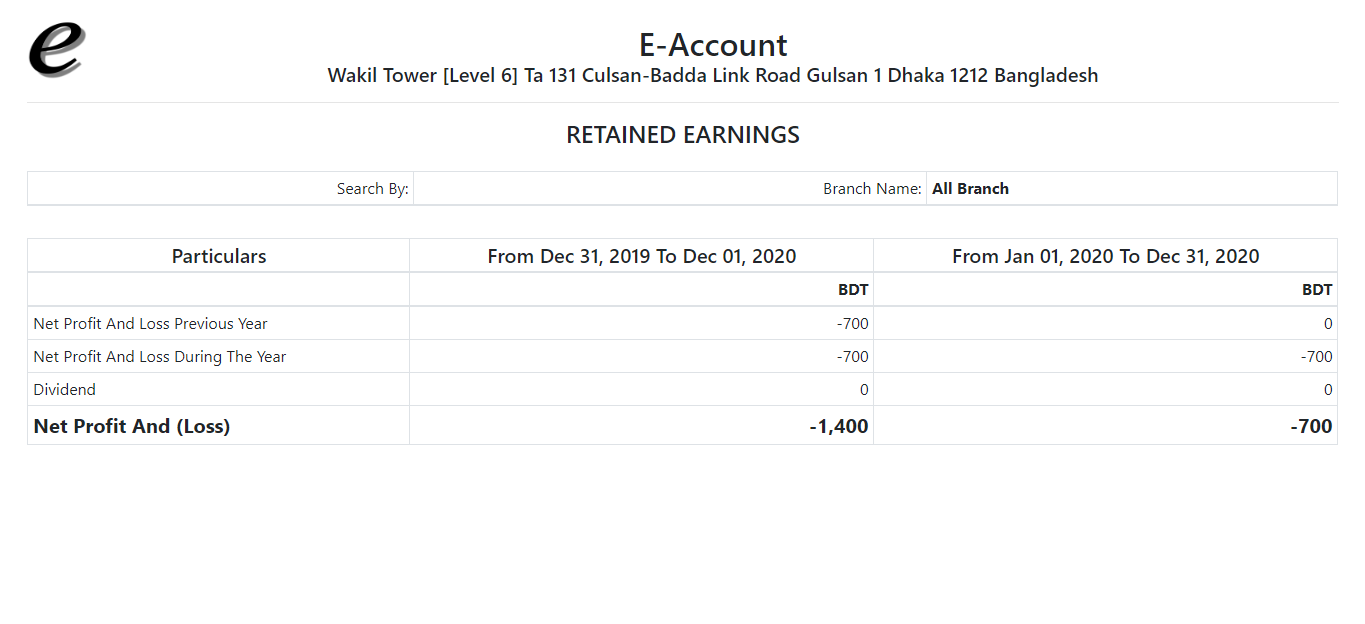
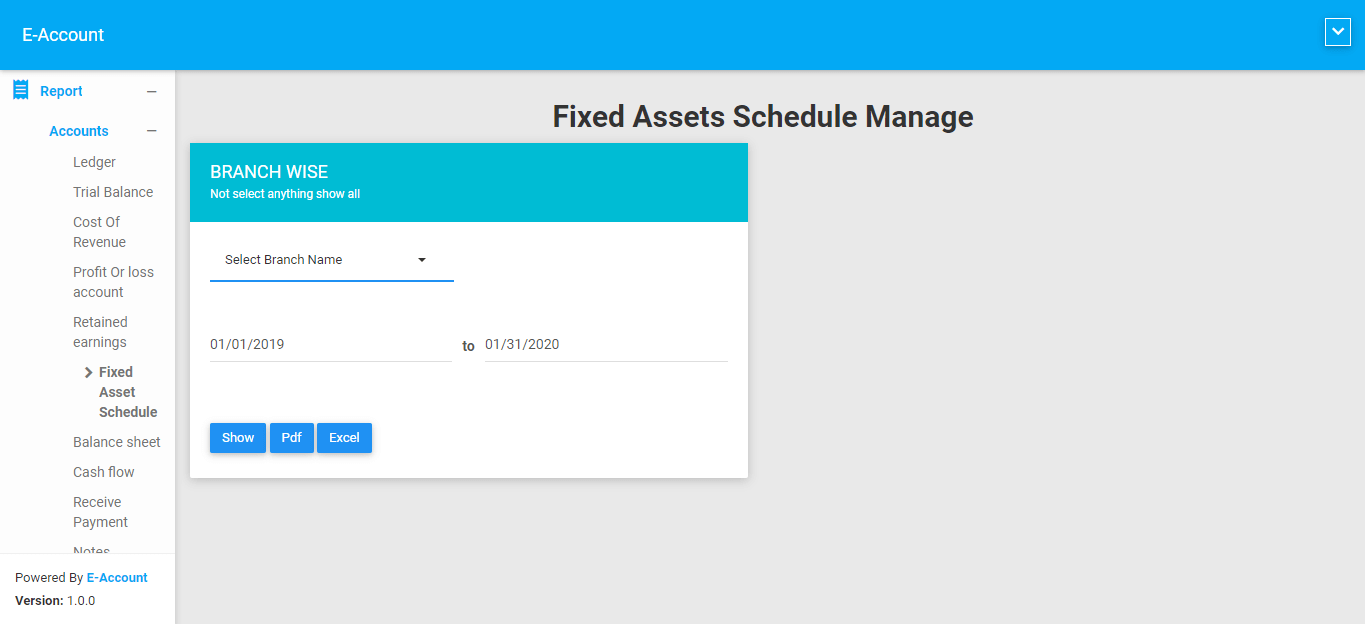
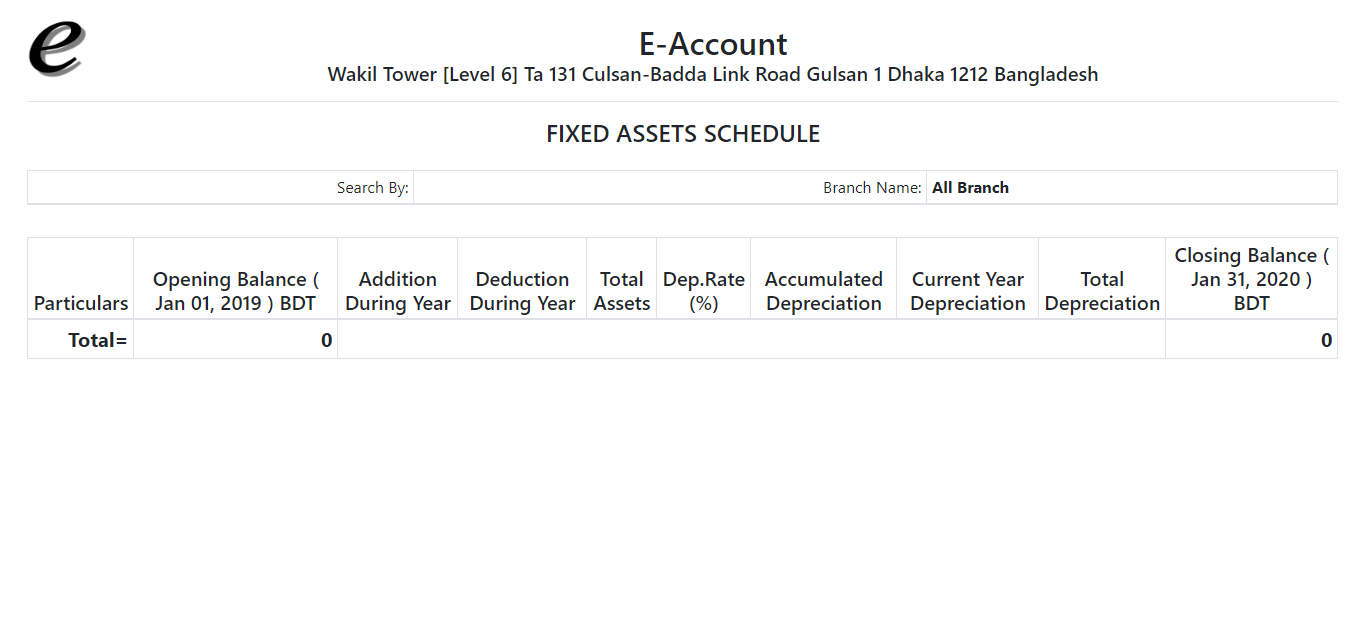
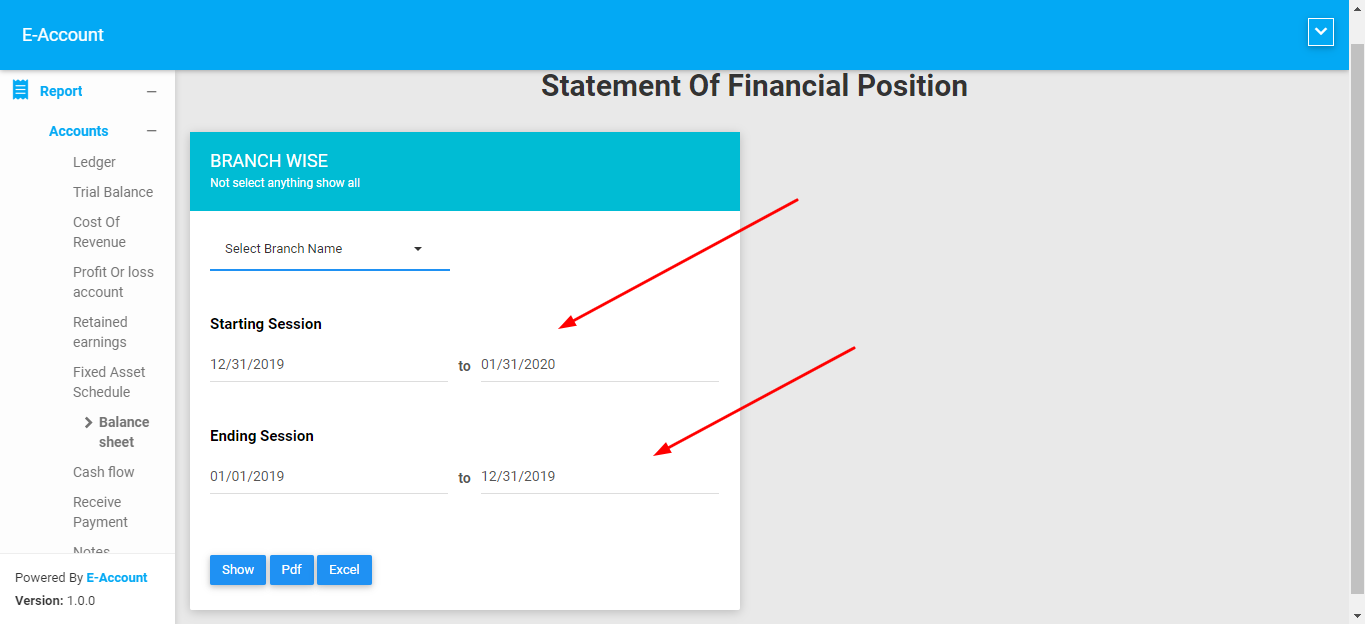
Components
Installation
The installation process is very simple. Just follow the steps below.
Server requirments
- PHP Version: 8.1 or higher.
- MySQL 10.x
- Composer version 2.8.5 or higher
Database creation
To create a database on cPanel, you can follow these steps:
- Log in to your cPanel account provided by your hosting provider. You should have received the login credentials from your hosting company.
- Once logged in, search for the "Databases" section. The exact location may vary depending on the cPanel theme or version, but it is usually easily accessible from the main dashboard.
- In the "Databases" section, look for the "MySQL® Databases" or "MySQL Database Wizard" option. Click on it to proceed.
- On the next page, you will find an option to create a new database. Enter a name for your database in the provided field. It's a good practice to choose a descriptive name that relates to your project or application.
- After entering the database name, click on the "Create Database" button to create the database.
- Once the database is created, you may also need to create a database user and assign privileges to that user. Look for options like "MySQL Users" or "Add New User" in the same section or related menus.
- Provide a username and password for the database user and associate it with the newly created database. Make sure to use a strong password for security purposes.
- After creating the database user, you will have the option to assign privileges or permissions to that user. Grant the necessary privileges such as "All Privileges"
Copping files & folders
- Unzip the main.zip file that we provided.
- Upload the eaccount.zip file to your cPanel where you want to host it.
- Unzip the eaccount.zip file in your cPanel directory.
For instrallation please follow below video tutorial
Done
Congratulation you can successfully install our application.
Email: superadmin@eaccount.xyz
Password: 1234
Later you can change your password
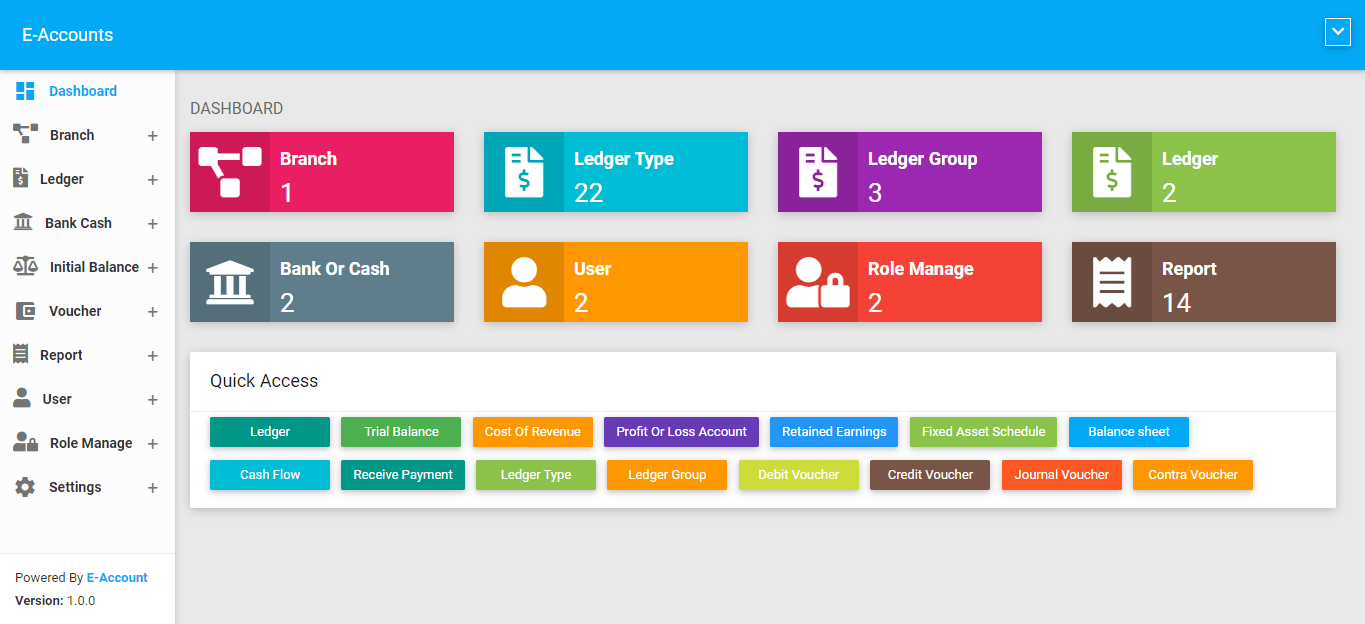
Dashboard
Welcome to E-Real Estate Dashboard. Our Dashboard is very simple. You can easily see overview of our application. Easily Go thorugh important module.
Project
All
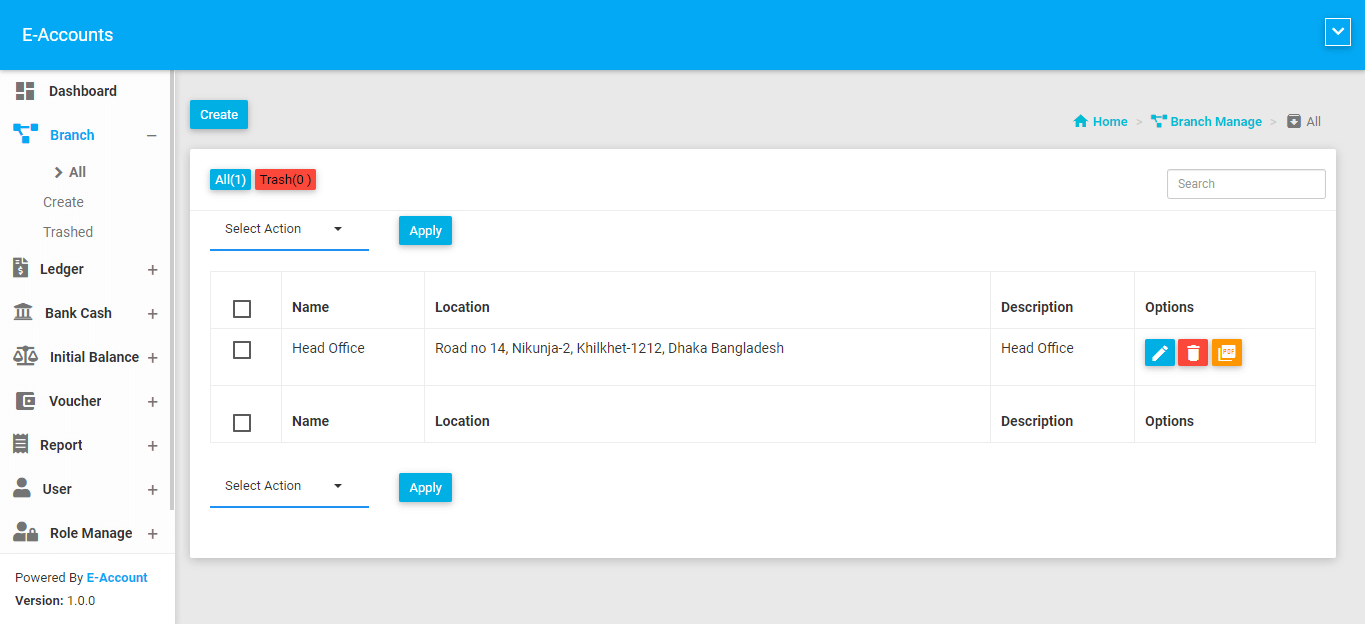
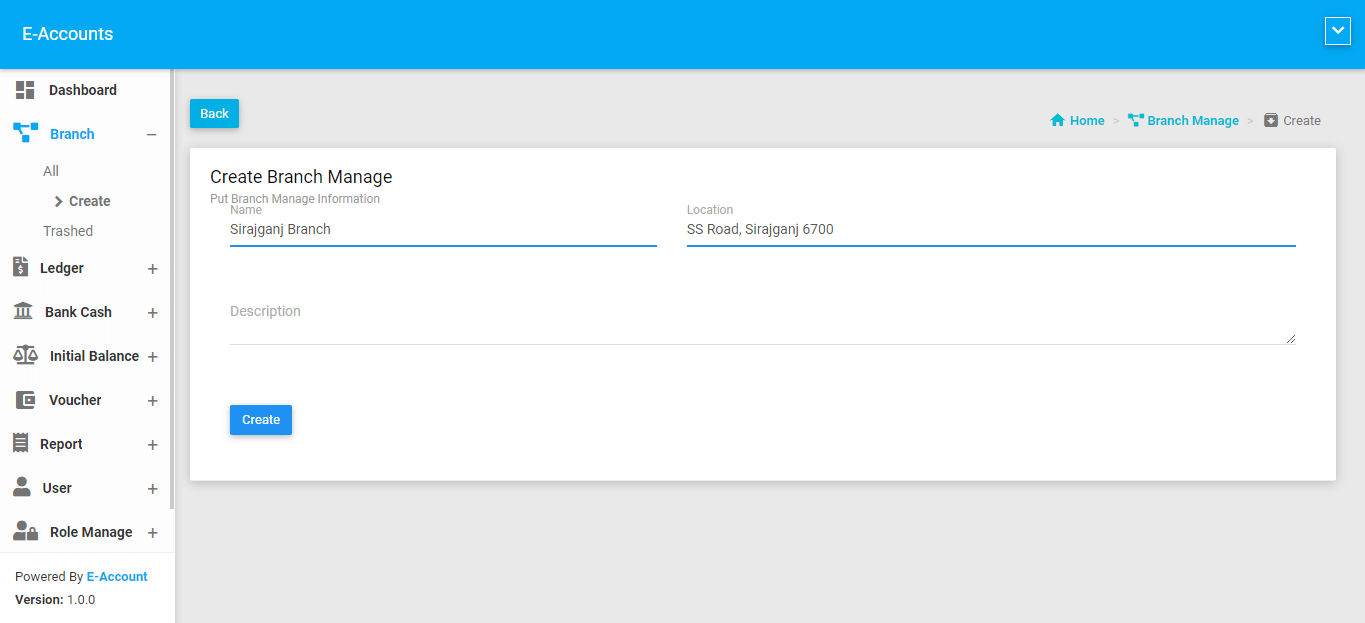
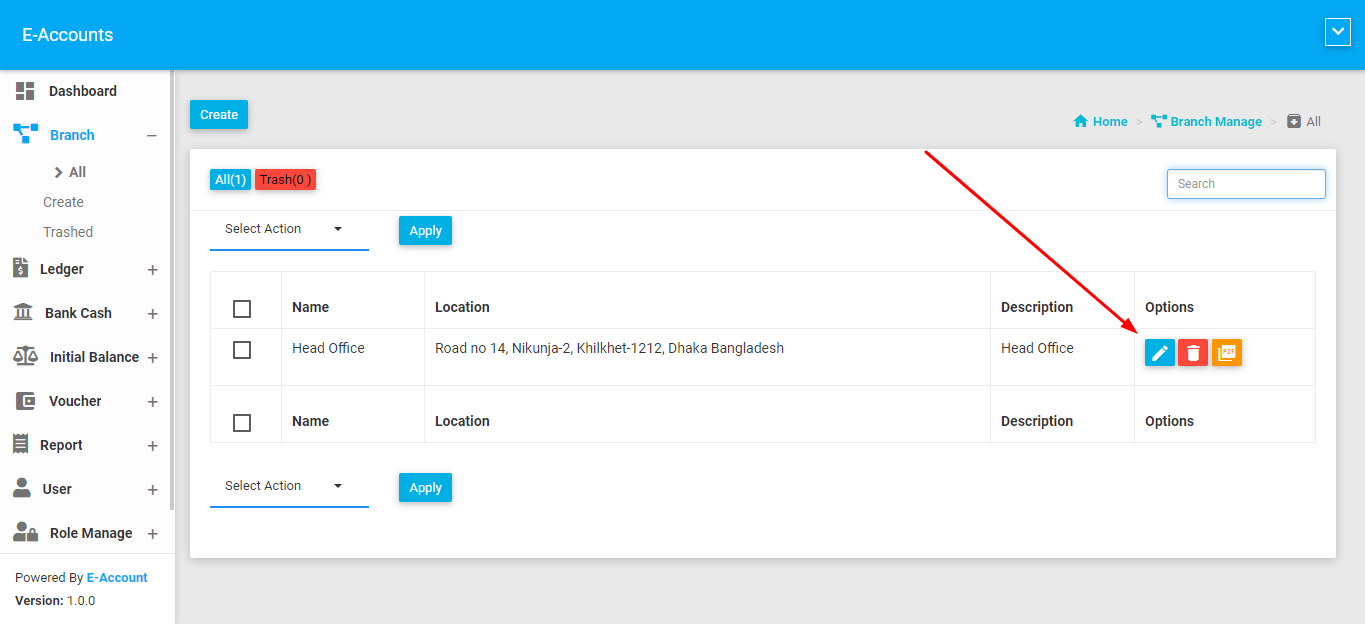
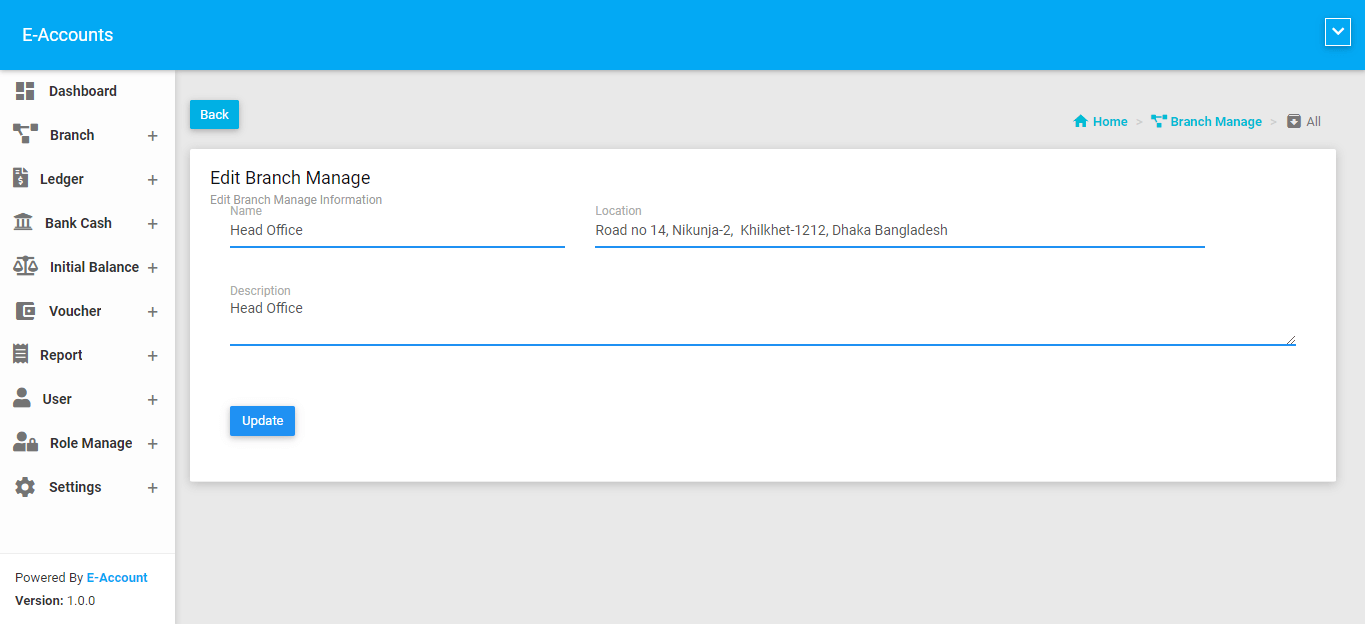
Click Project item from left side menu and click all.You can see how many branch you have. You can add, edit, soft delete, Search, permanently delete also generate pdf. Project can be use as category, company, company branch or company project.
Product
All
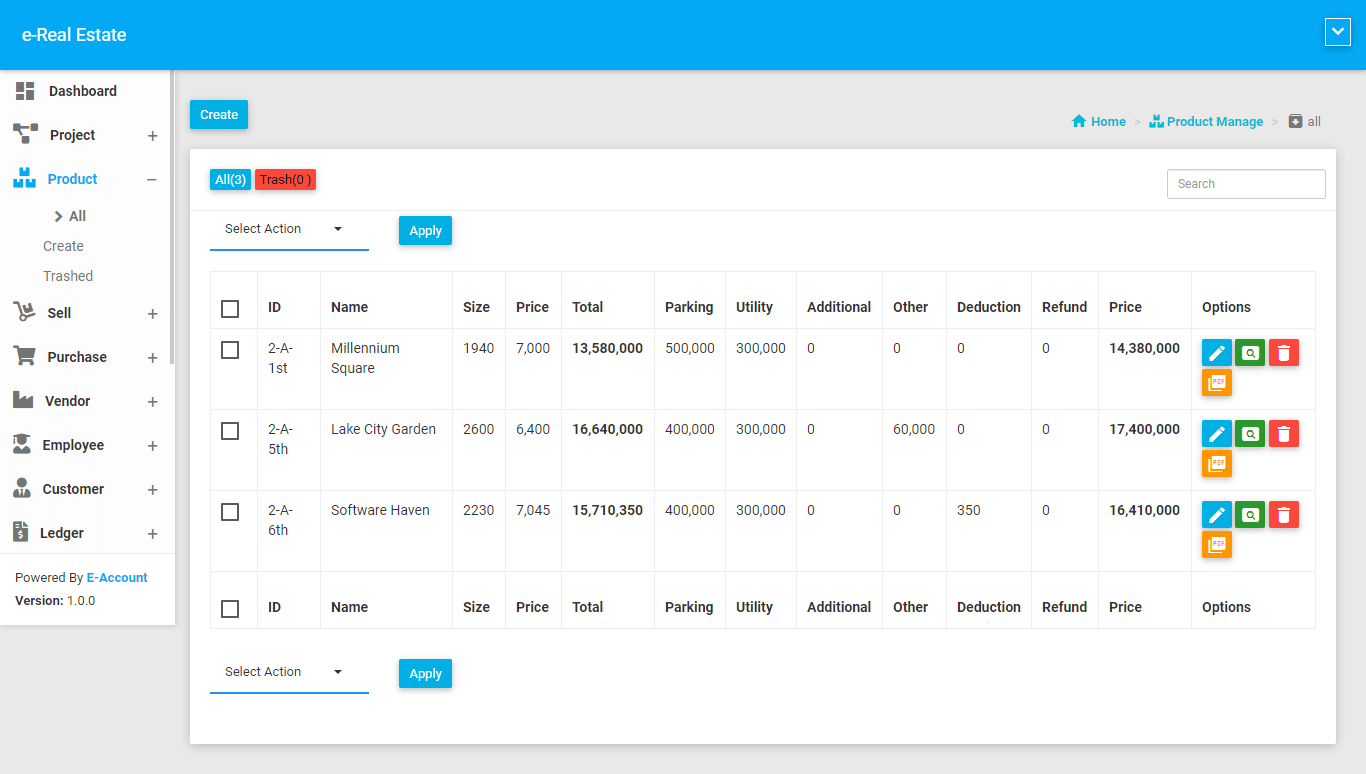
Click Product item from left side menu and click all.You can see how many product you have. You can add, edit, soft delete, Search, permanently delete also generate pdf.
Edit
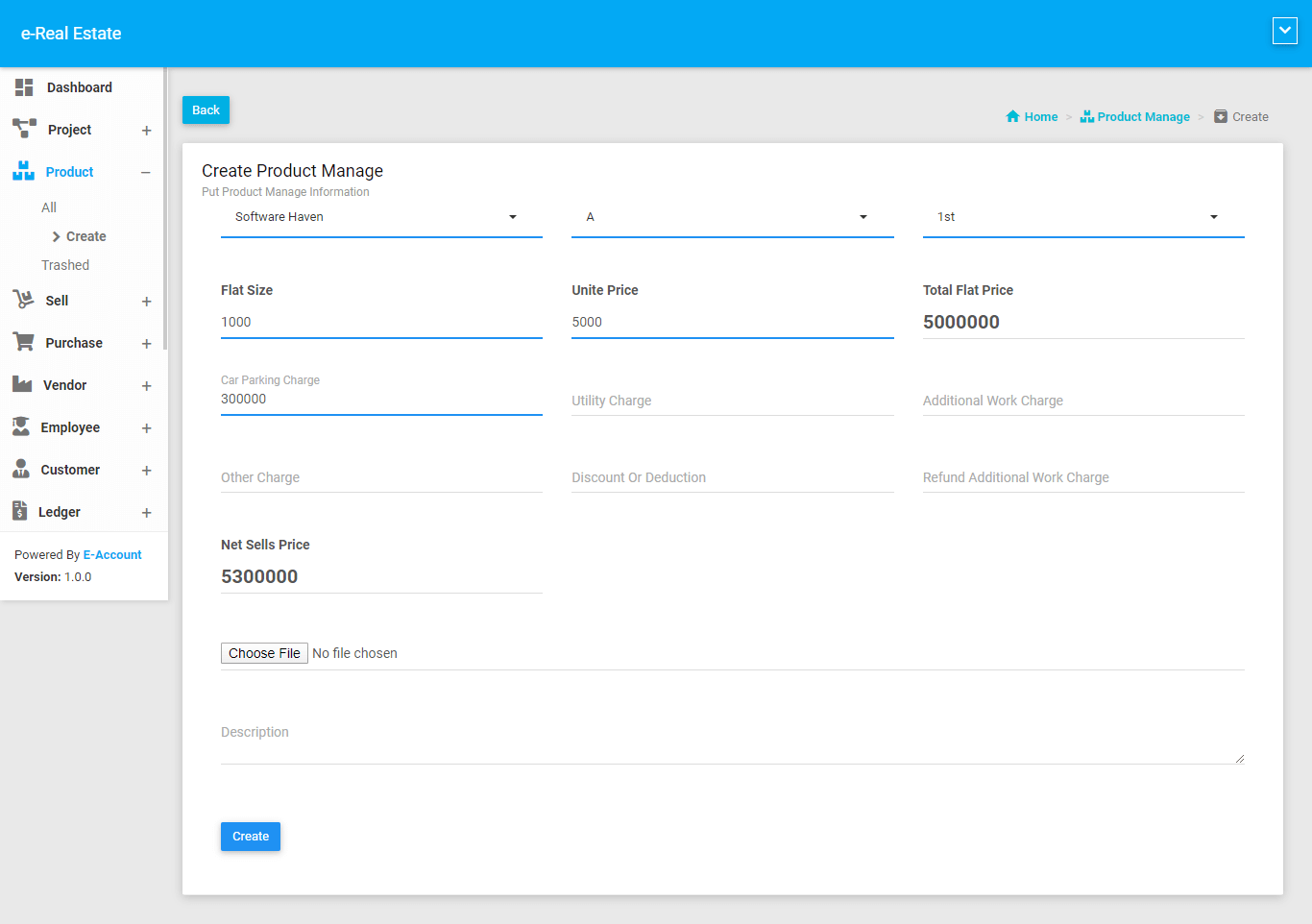
You can simpley edit product
Sell
All
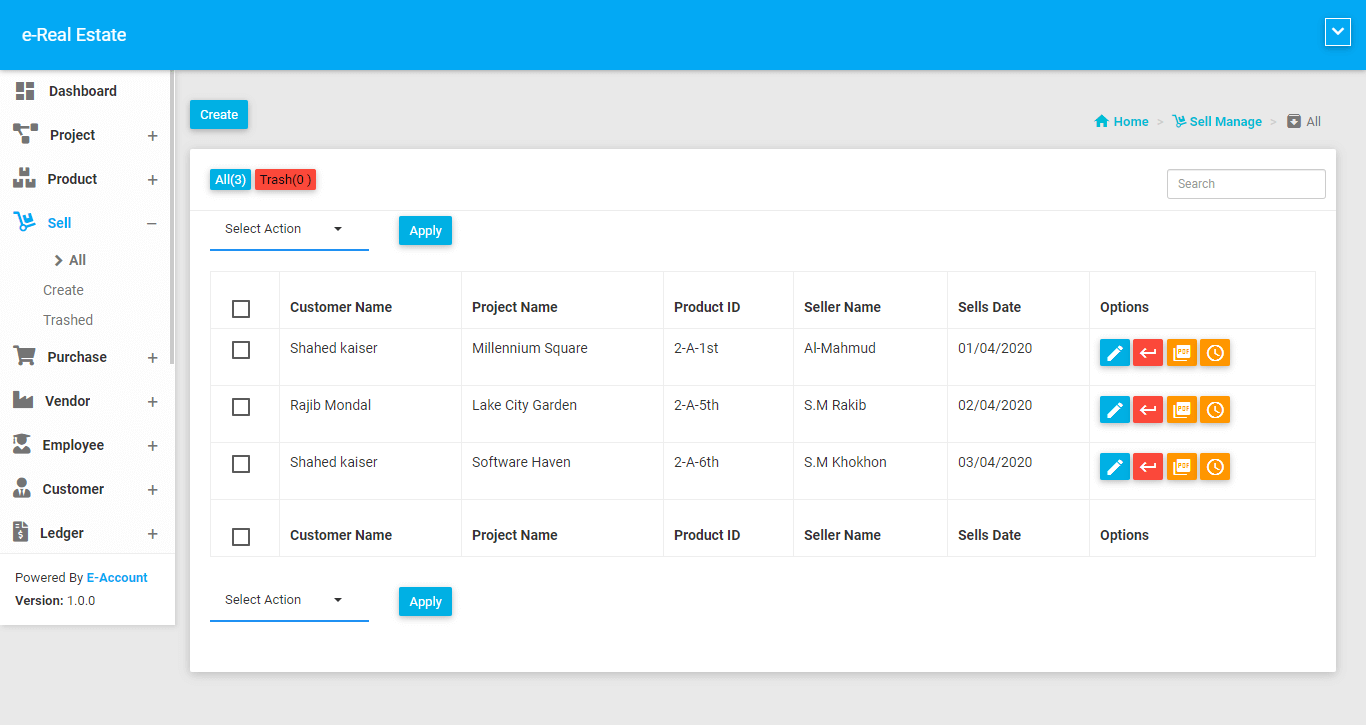
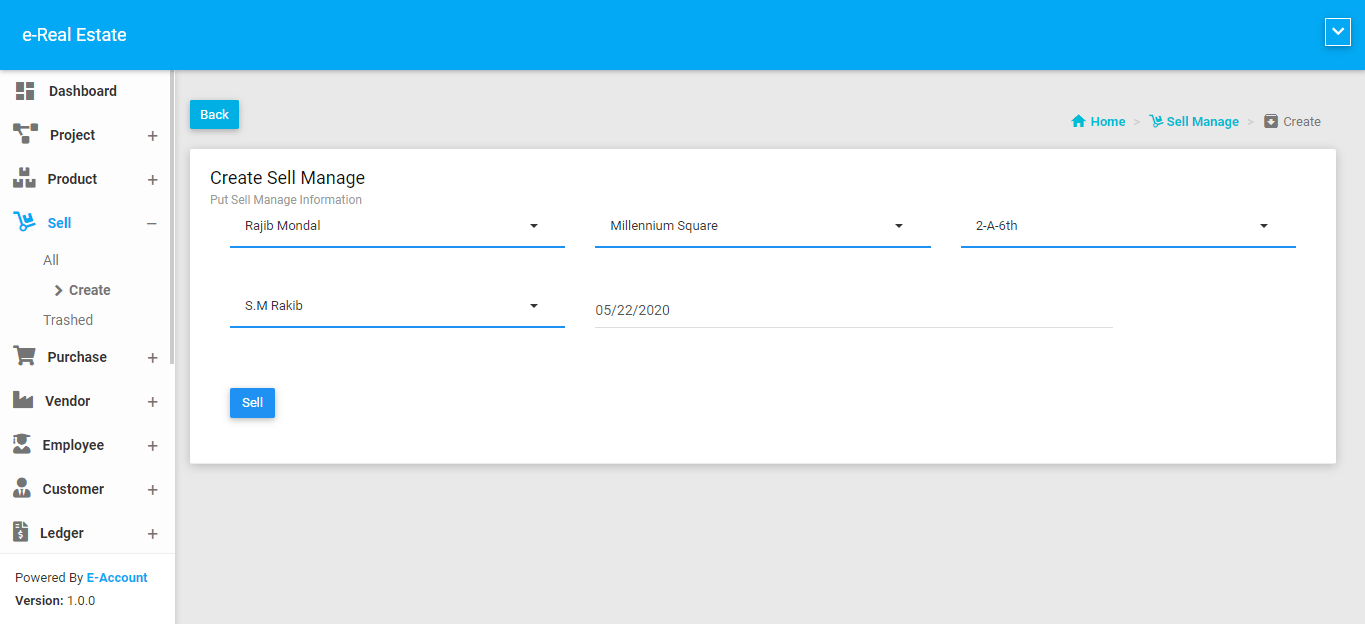
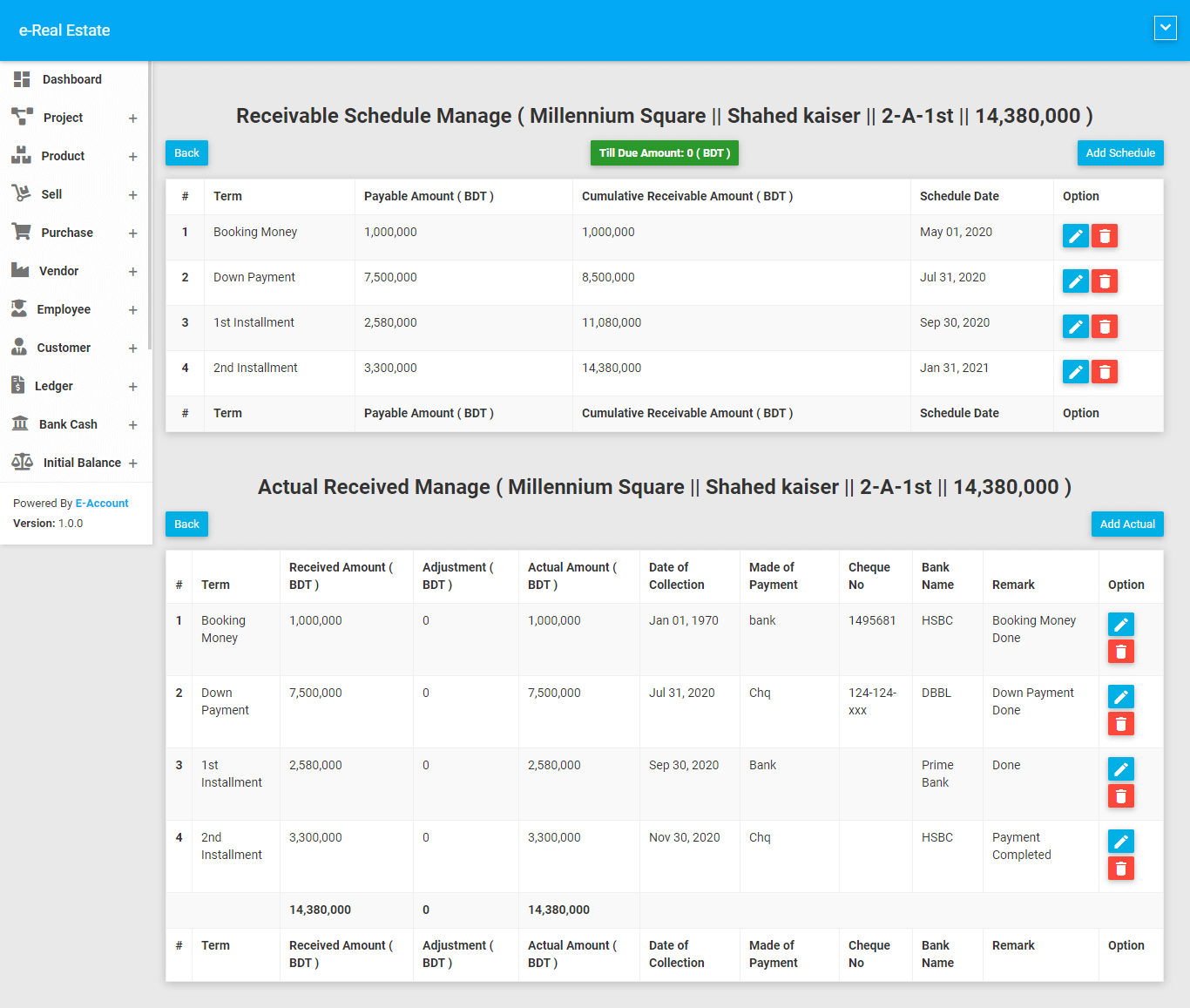
Click Sell item from left side menu and click all.You can see how many sold you have. You can also add, edit, soft delete, Search, permanently delete also added schedule manage.
Create
Select Customer name and Project then you will get product that you created on product module.
Purchase
A purchase means to take possession of a given asset, property, item or right by paying a predetermined amount of money for the transaction to be completed successfully. In other words, its’ an exchange of money for a particular good or service
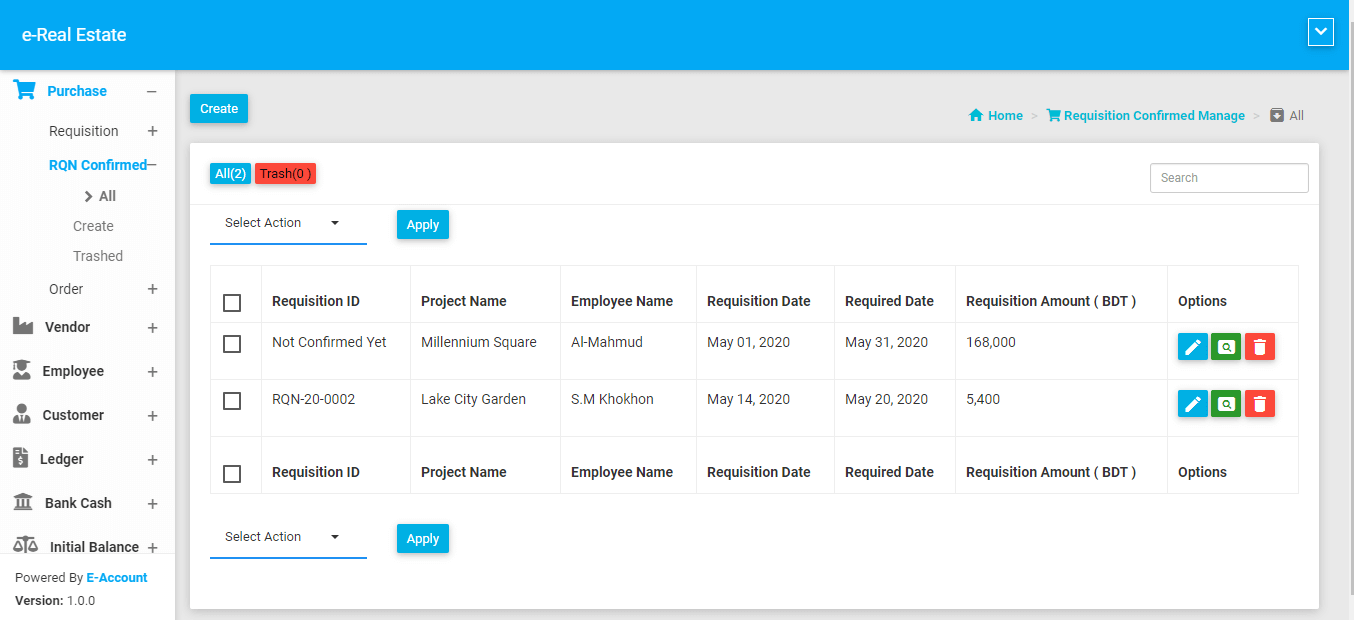
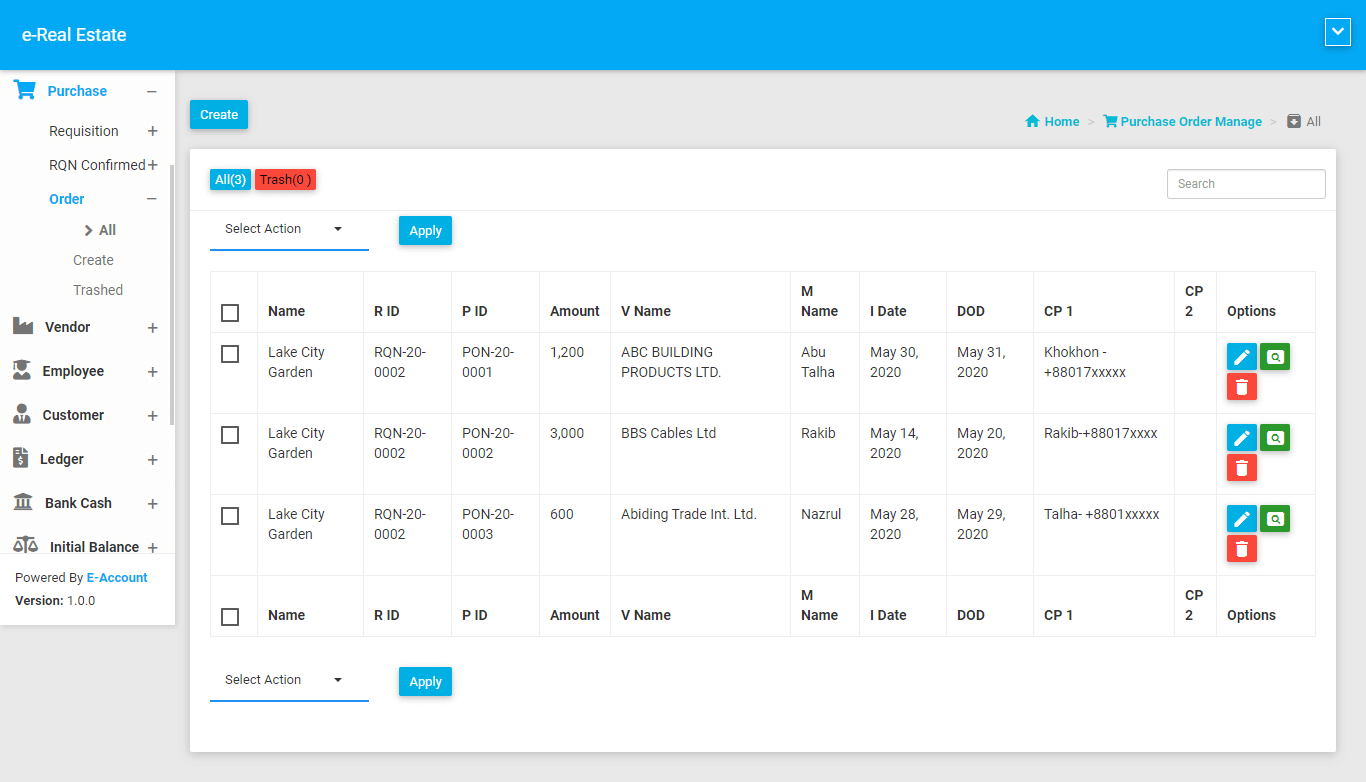
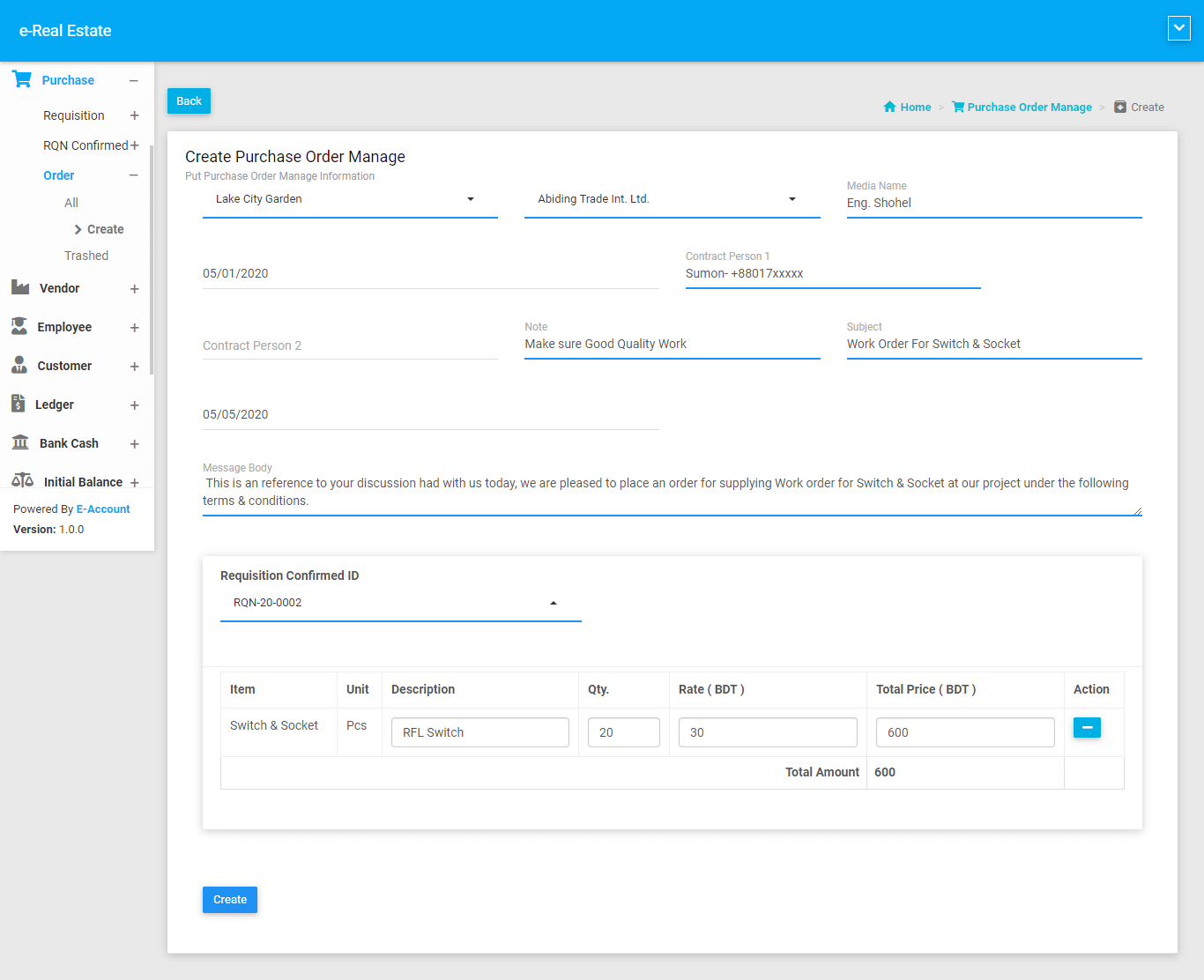
We arrange three step to purchase.
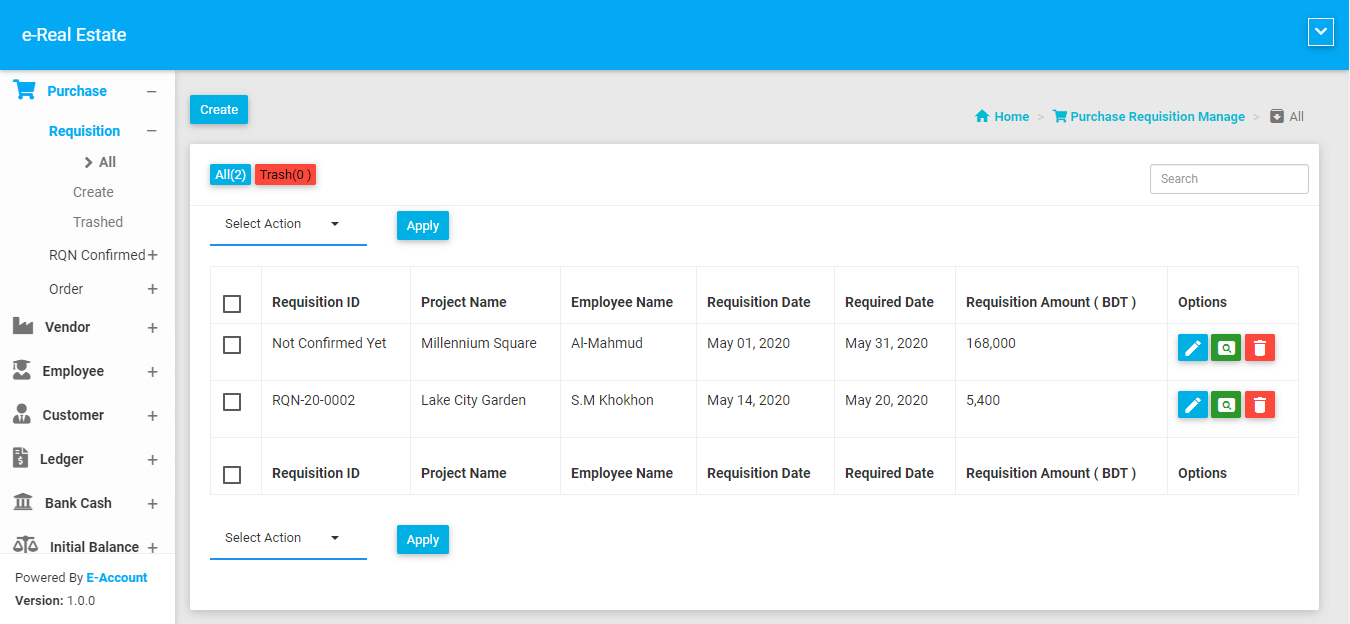
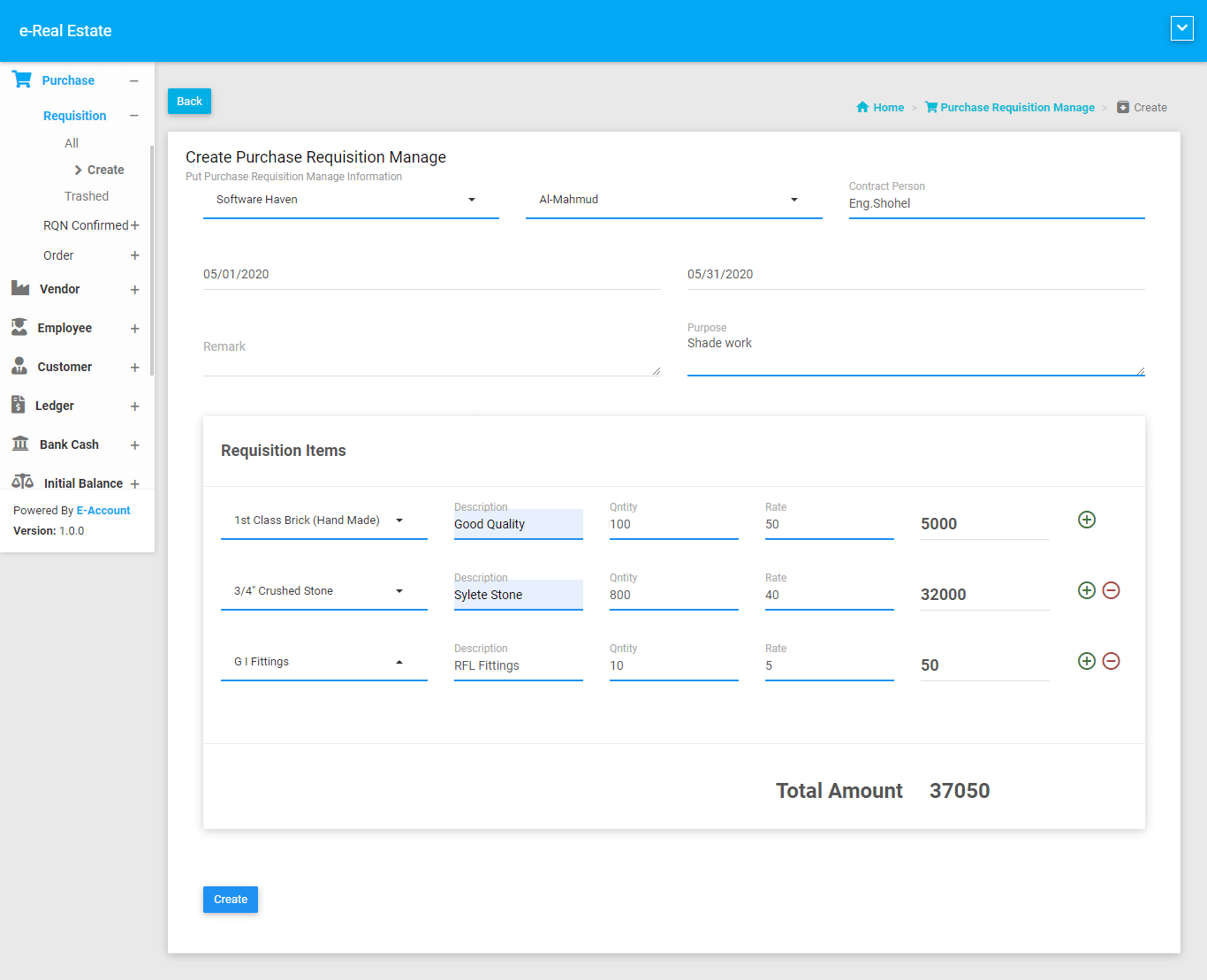
- Purchase Requisiton
- Requistion confirm
- Purchase Order
Purchase Requistion
Purchase Requistion Confirm
Purchase Order
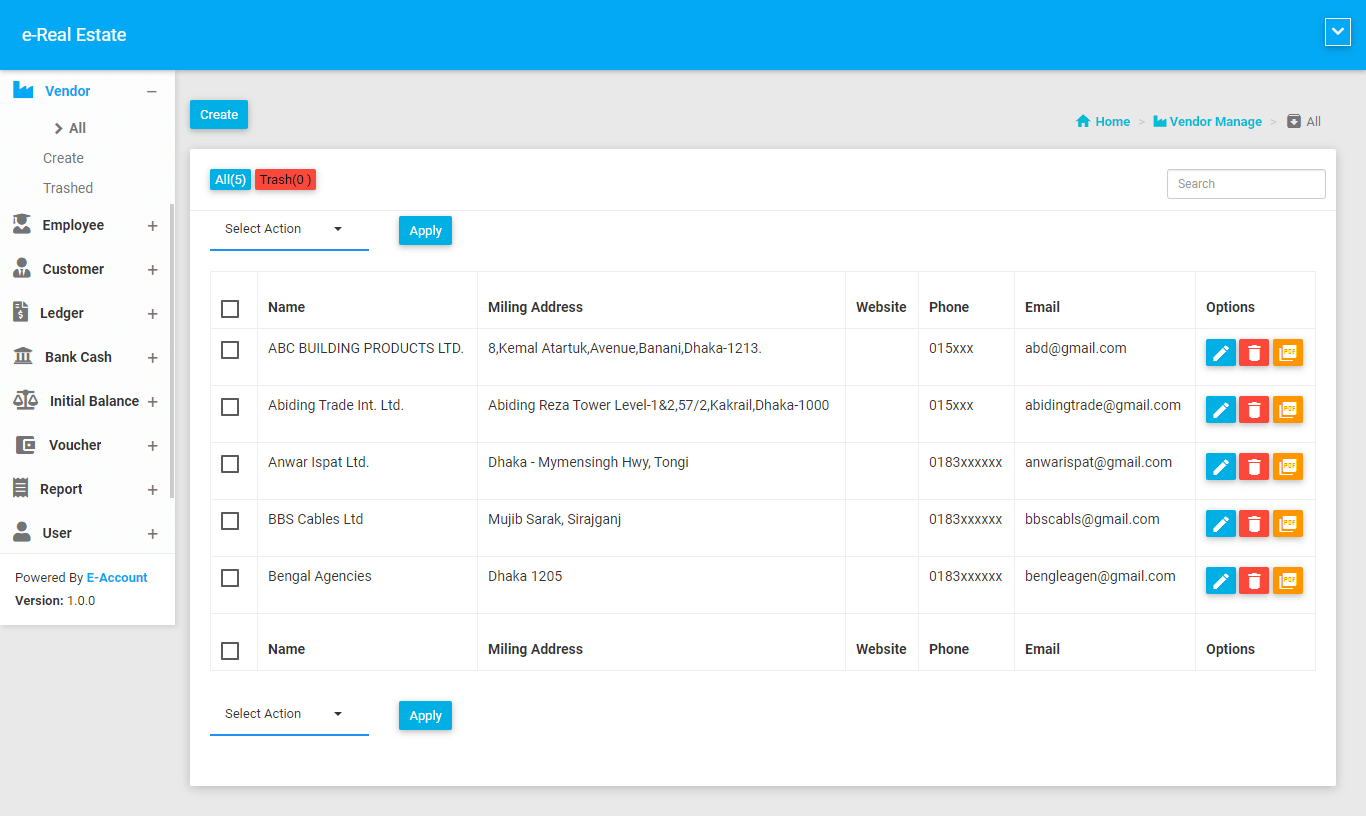
Vendor
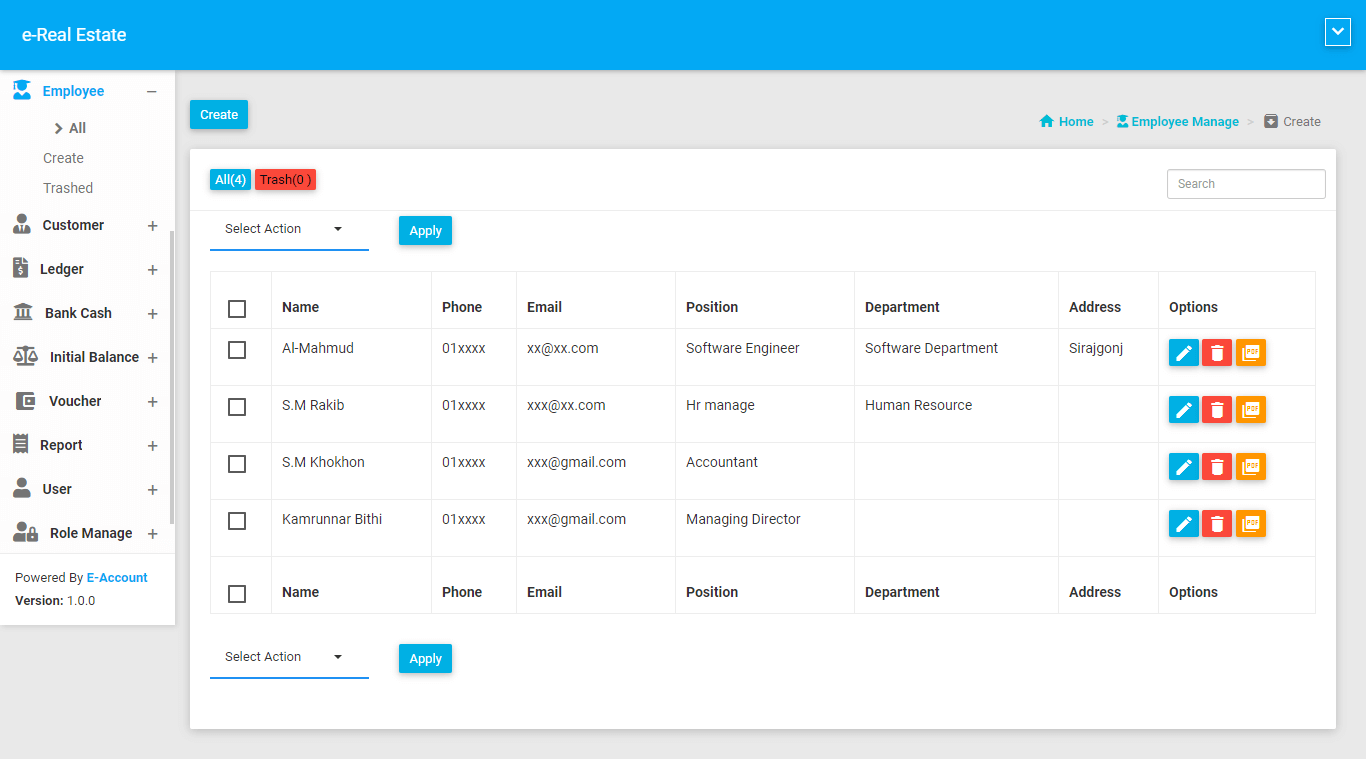
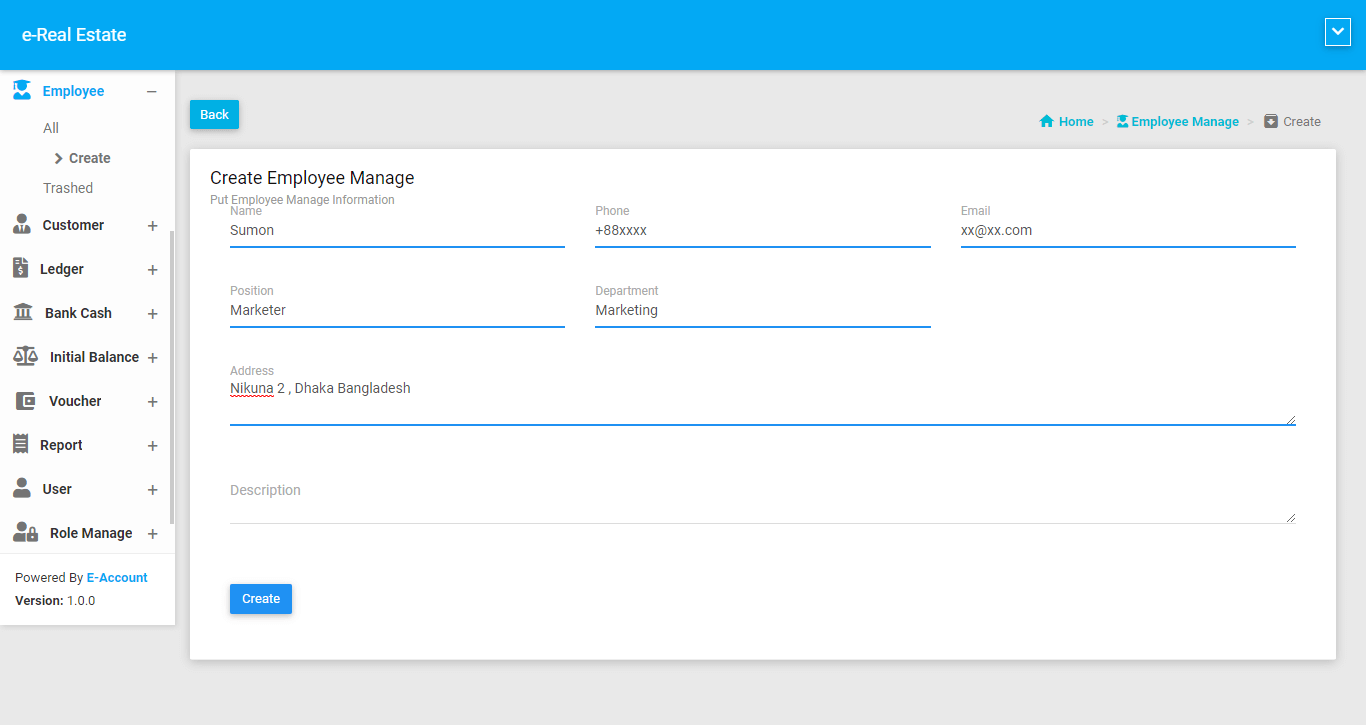
Employee
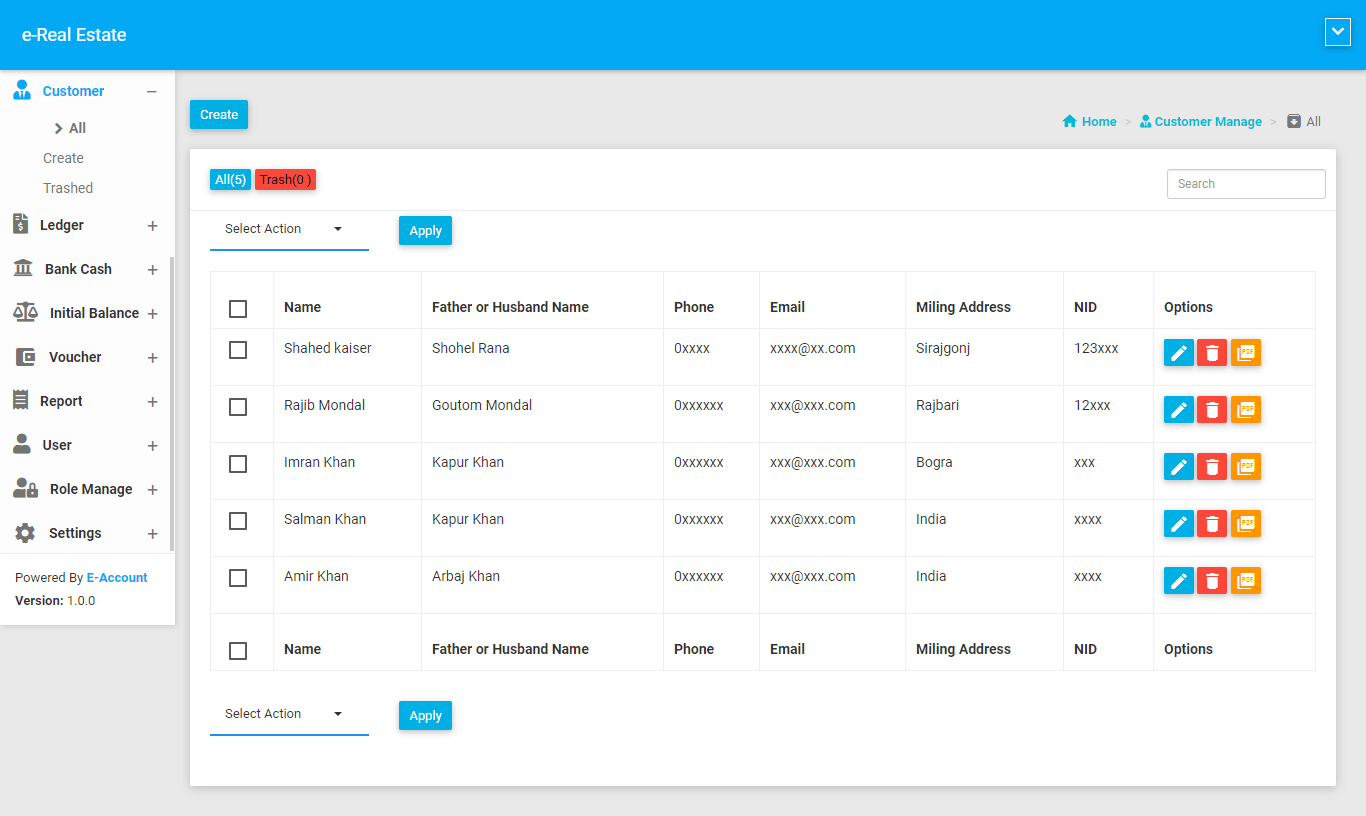
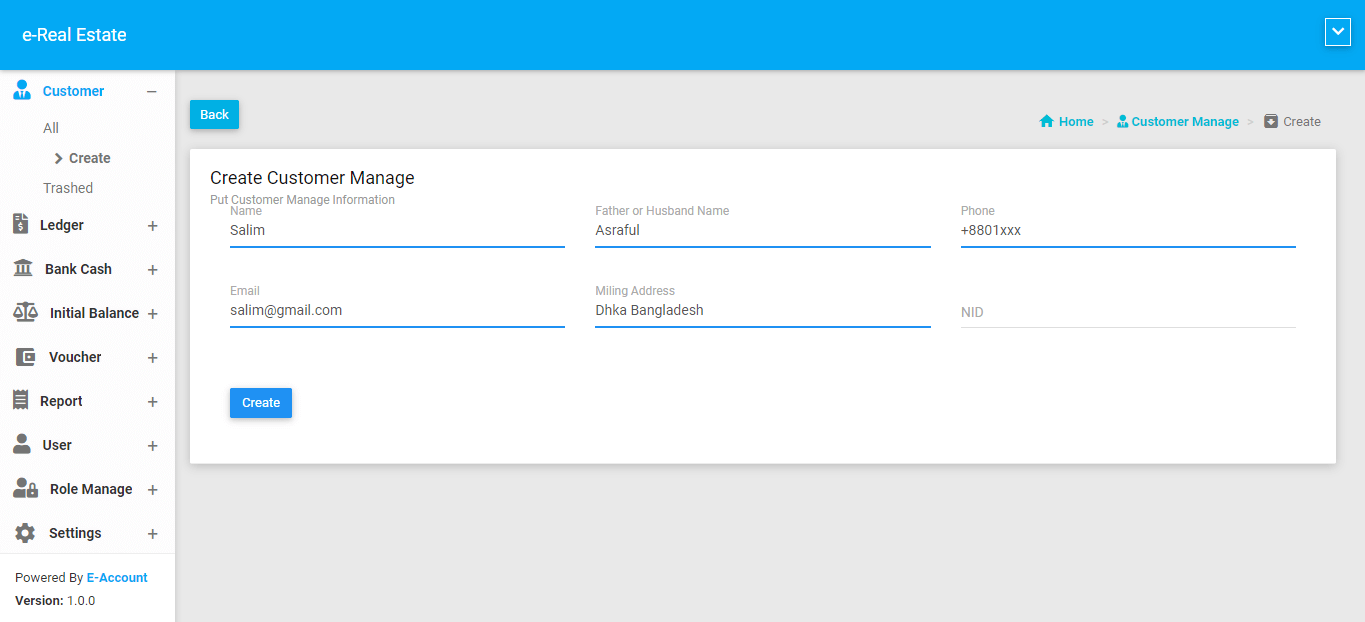
Customer
Ledger
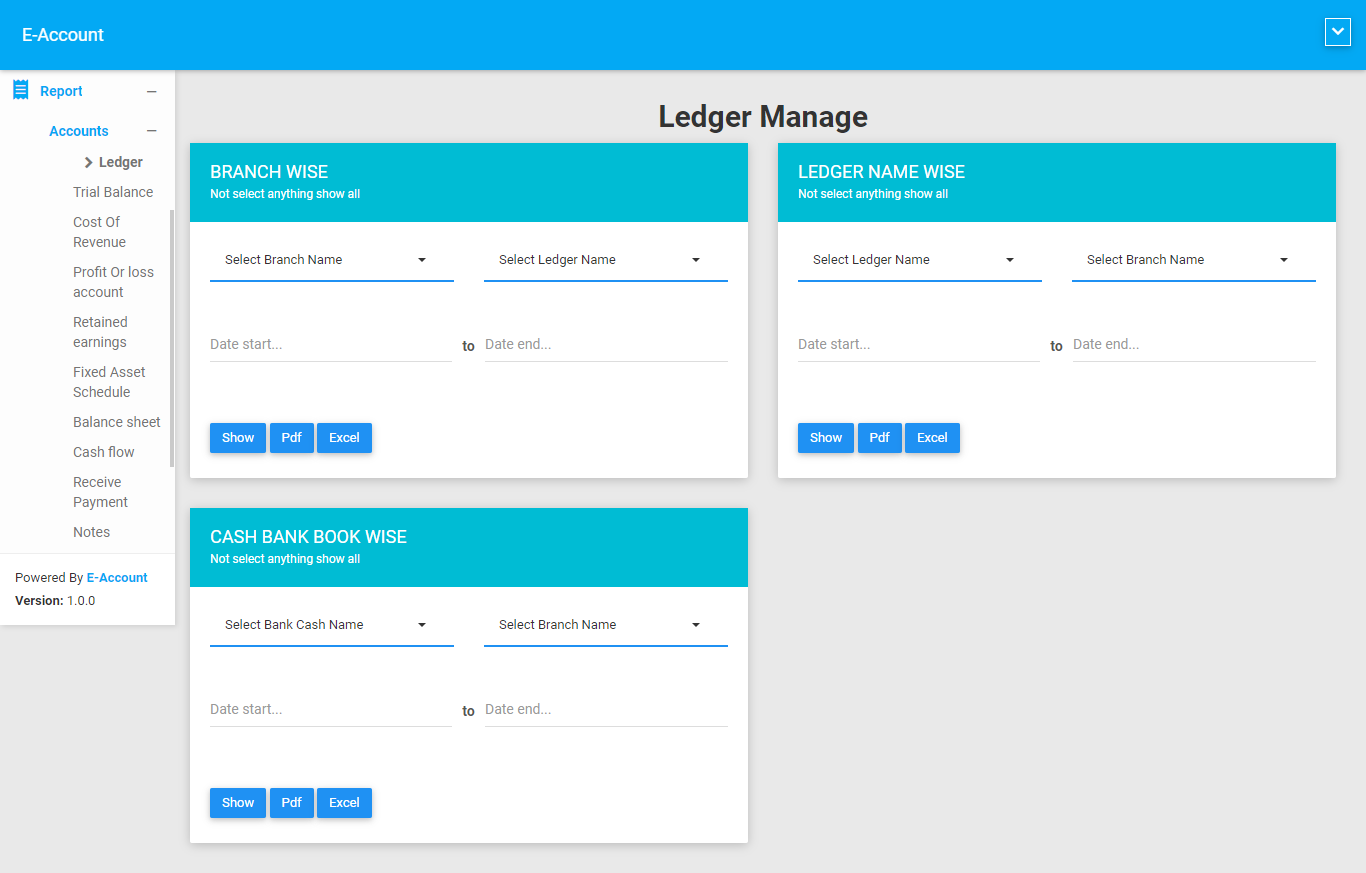
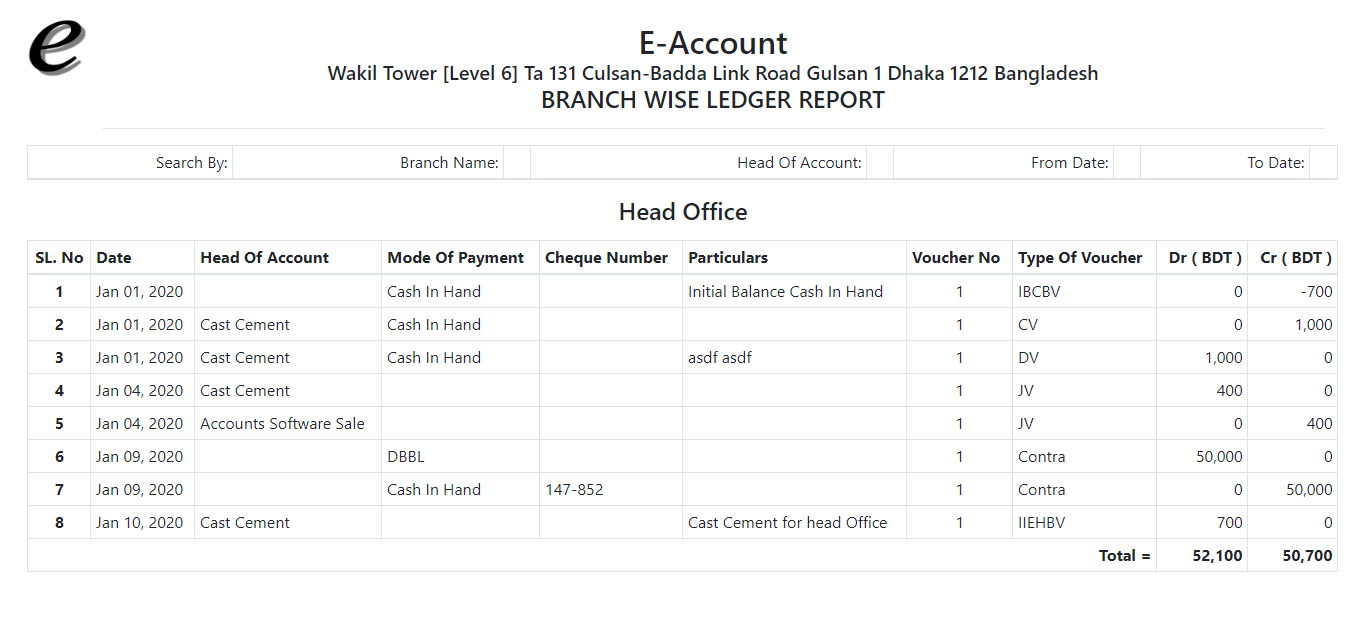
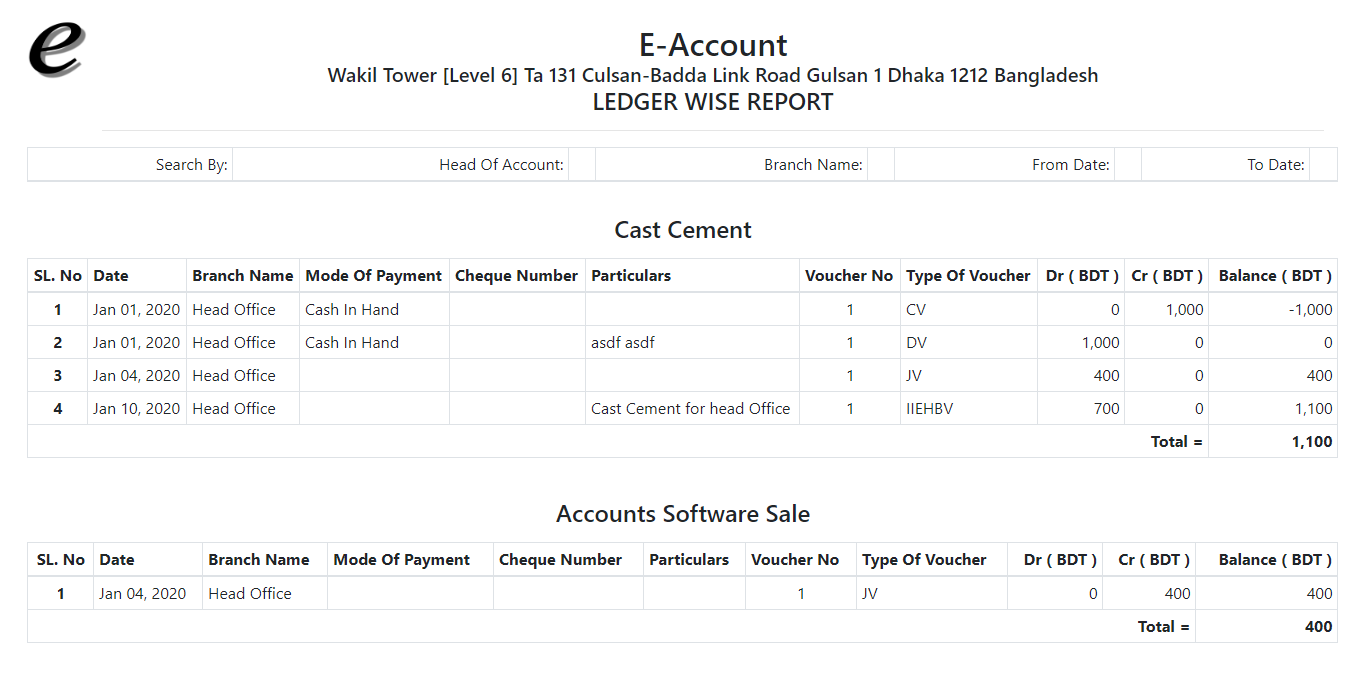
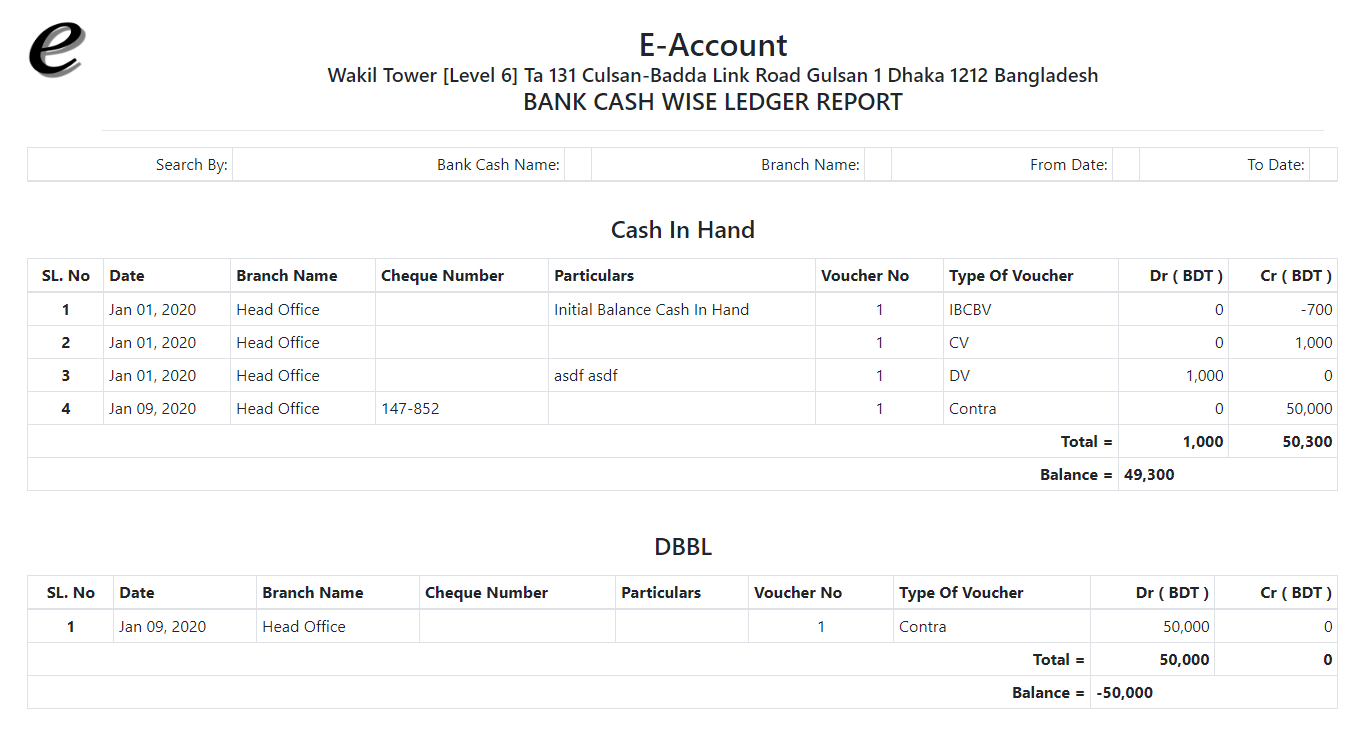
A ledger is a book containing accounts in which the classified and summarized information from the journals is posted as debits and credits. It is also called the second book of entry.
The ledger contains the information that is required to prepare financial statements. It includes accounts for assets, liabilities, owners’ equity, revenues and expenses. This complete list of accounts is known as the chart of accounts. The ledger represents every active account on the list.
We arrange ledger in three ways.
- Ledger Type
- Ledger Group
- Ledger Name
Ledger Type
All
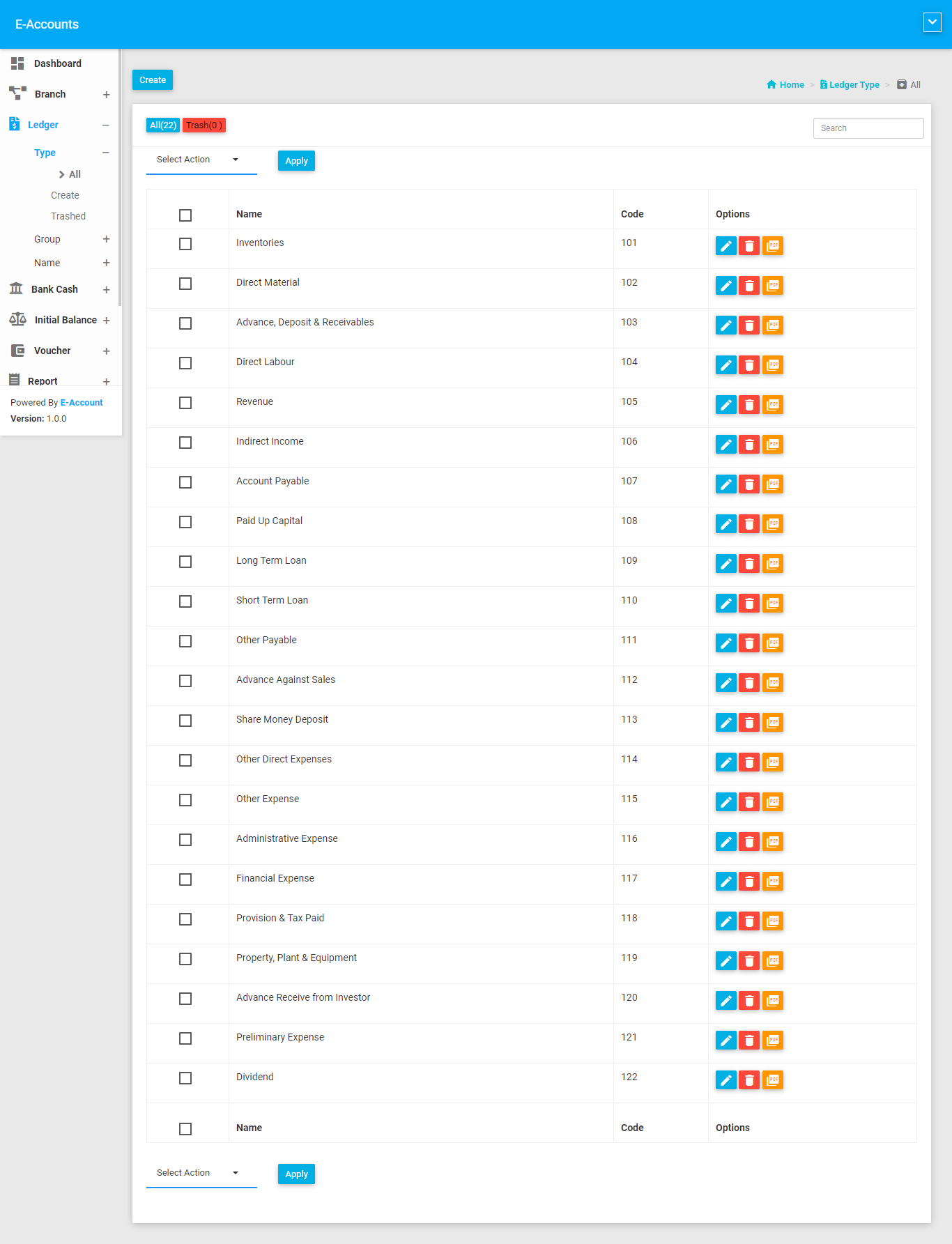
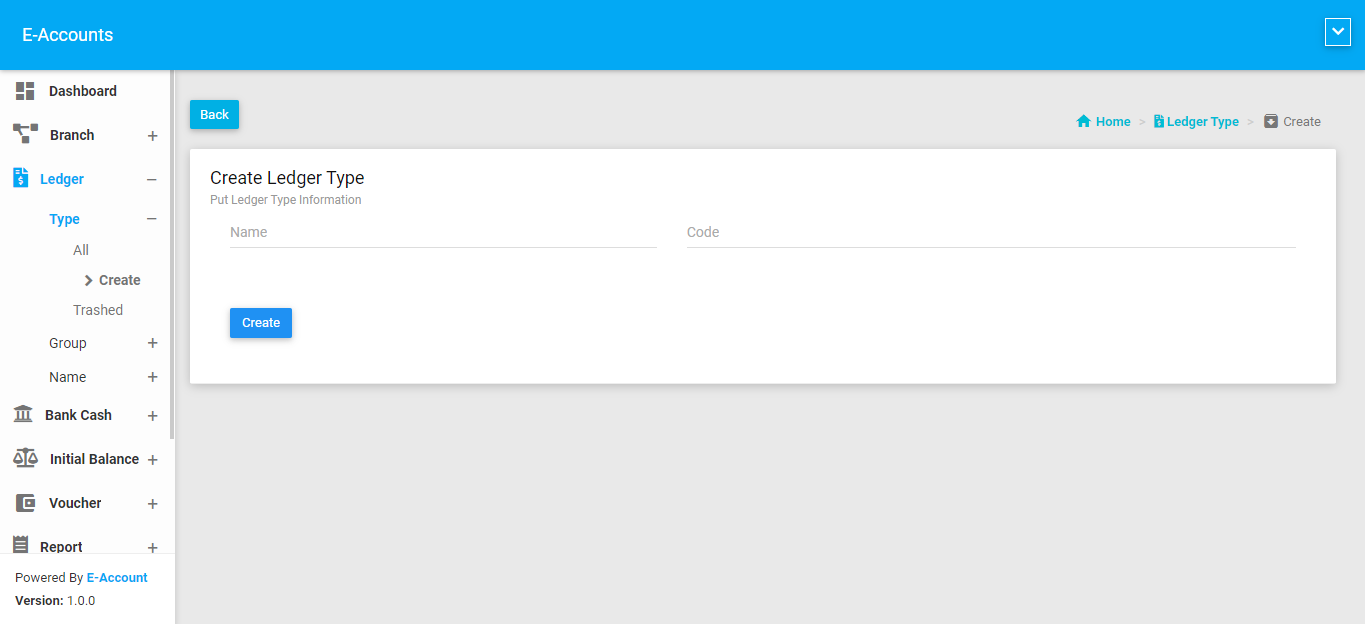
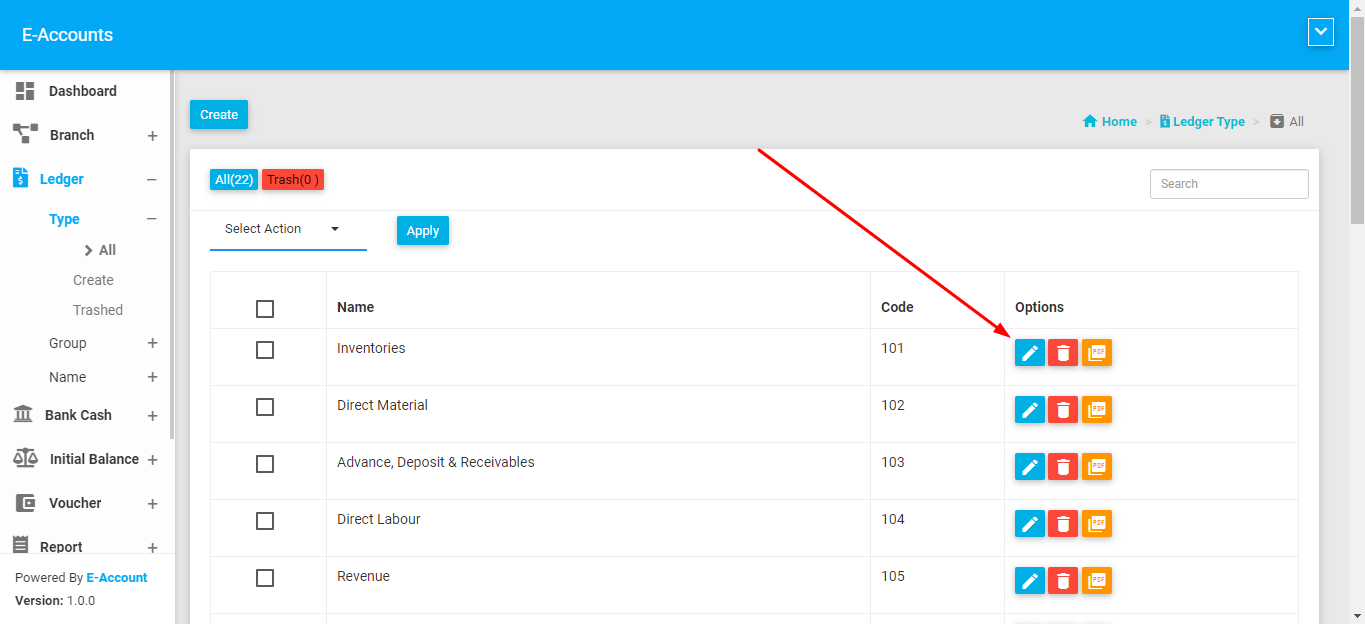
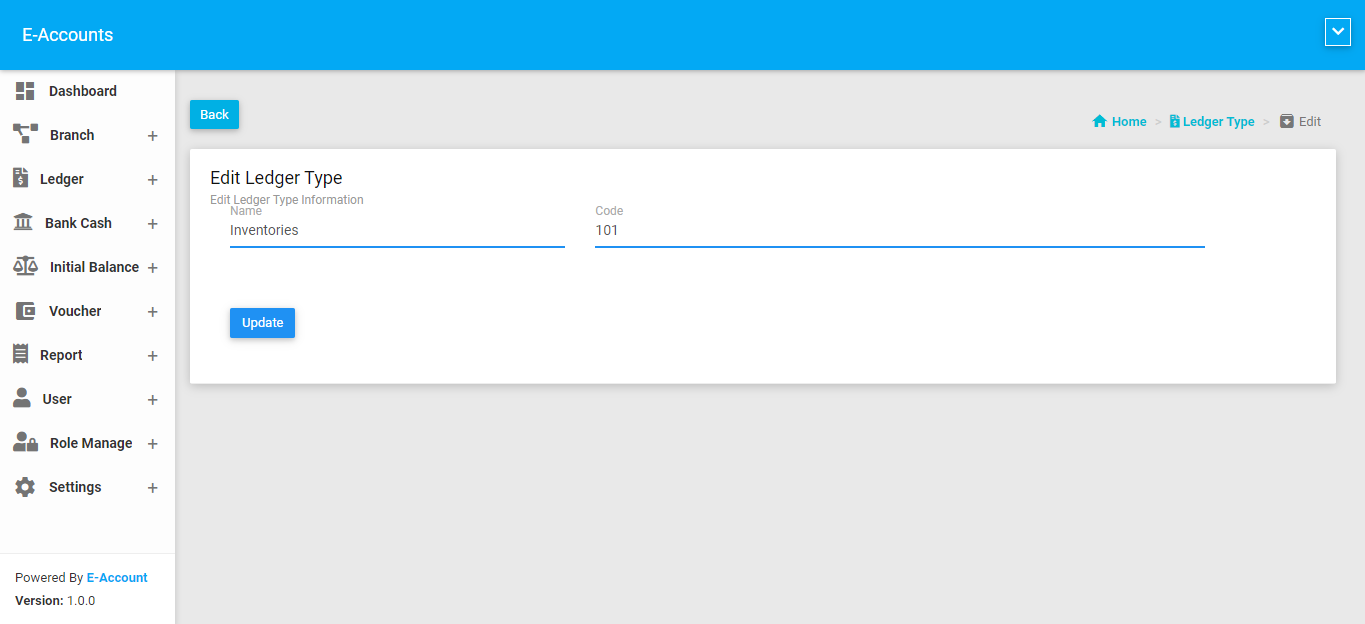
We provide ledger type and code to you. We are not allow to perform delete or create. You can edit. Again you have option to create or delete.
Ledger Group
All
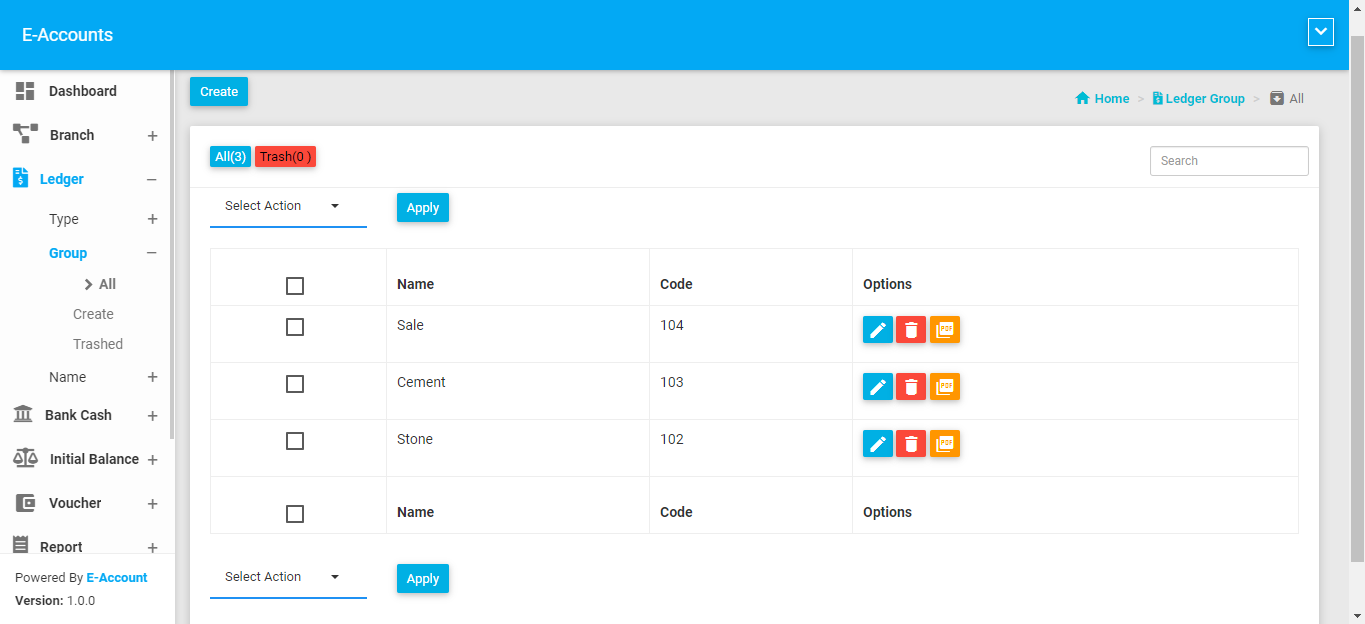
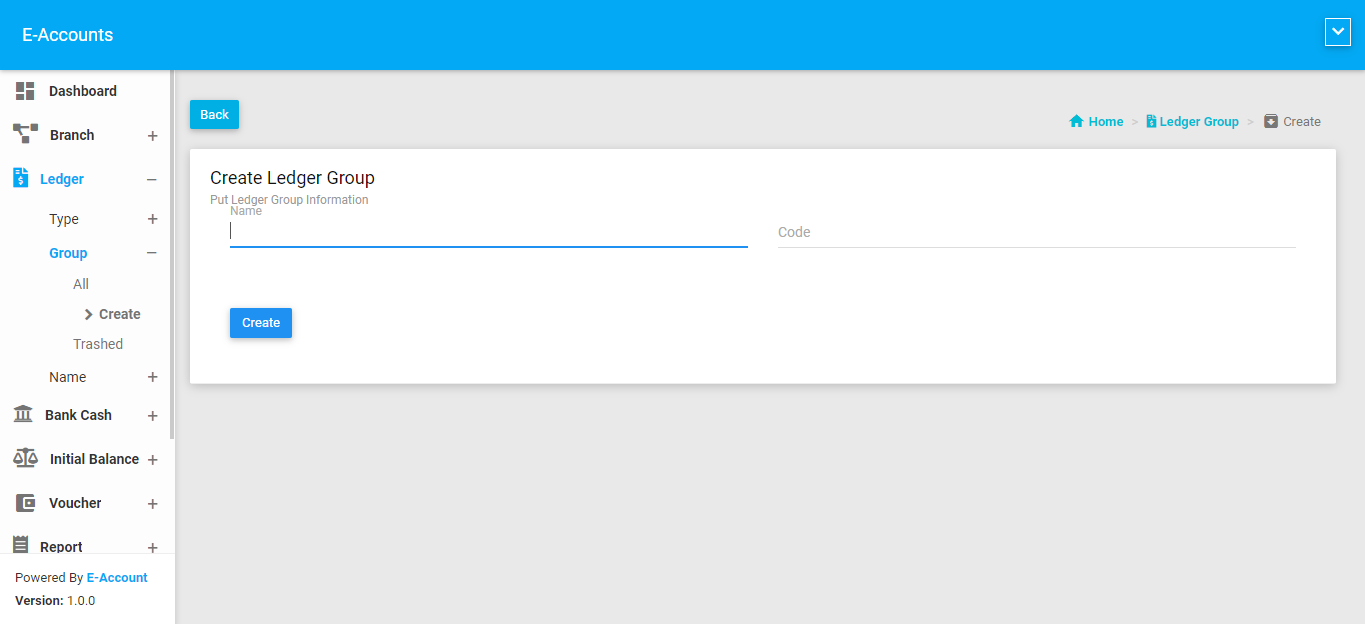
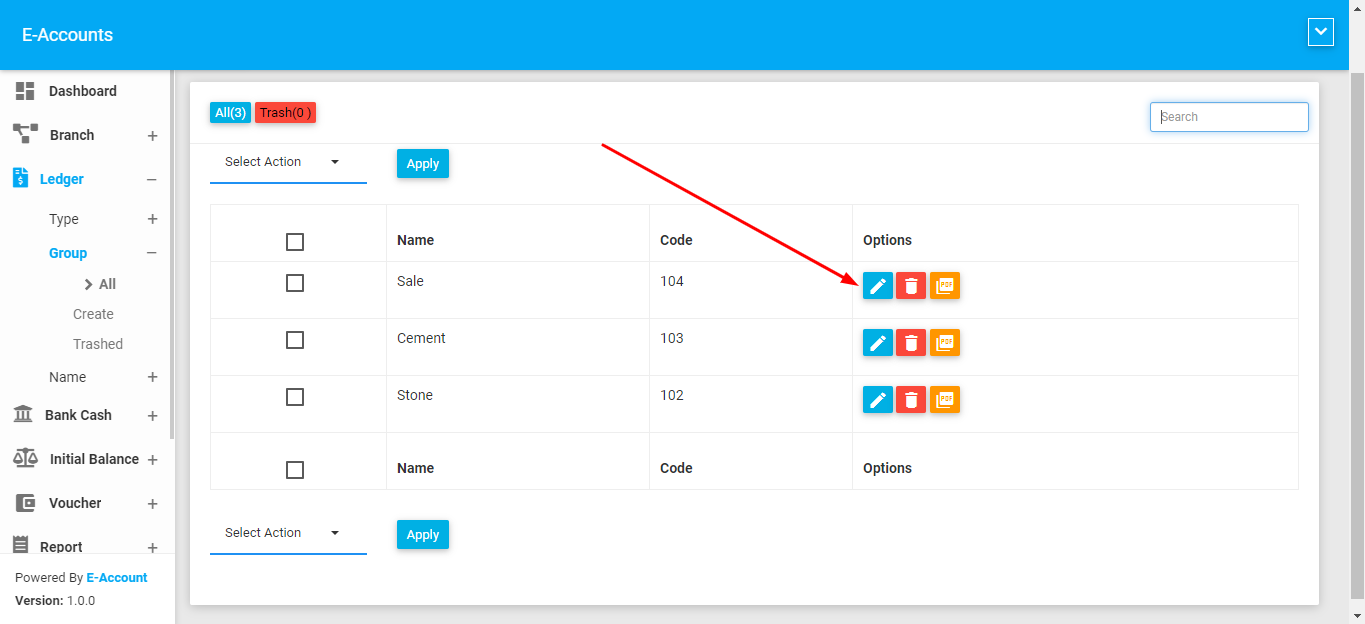
Ledger Group is a category of ledger name. For example: Your ledger name is Conveyance ( Mahmud ) then your ledger group name will be Conveyance . More Conveyance is assigned on Conveyance group
Ledger Name
All
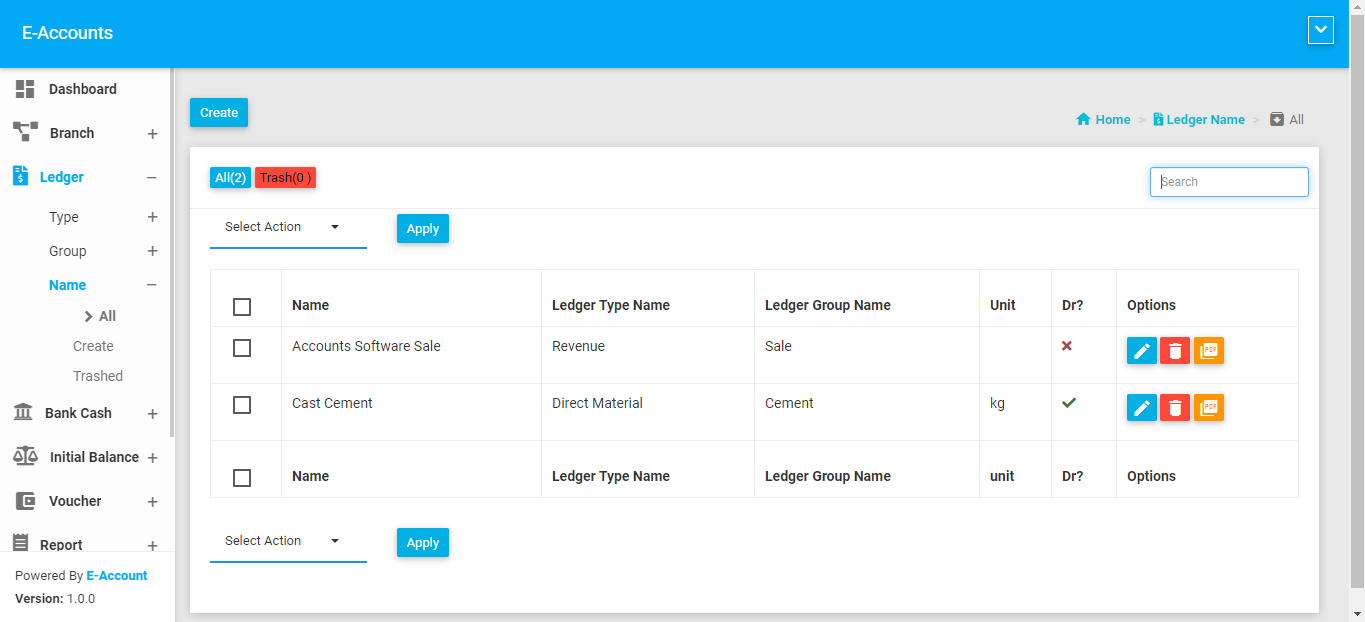
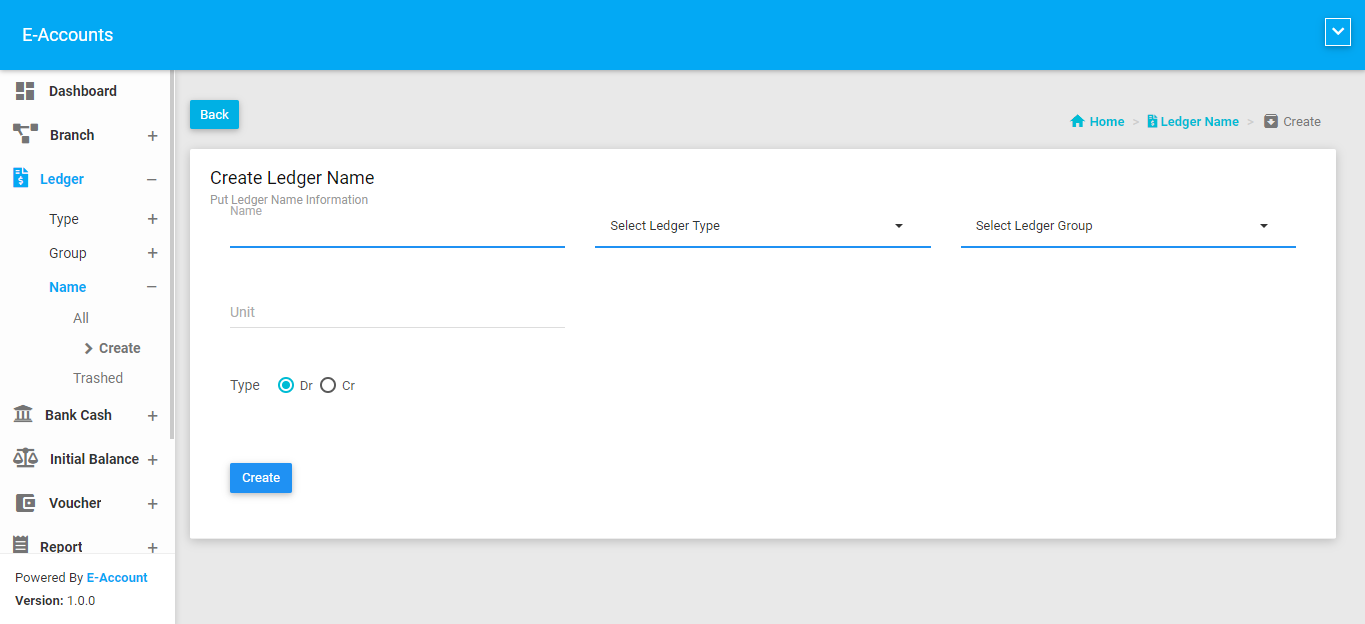
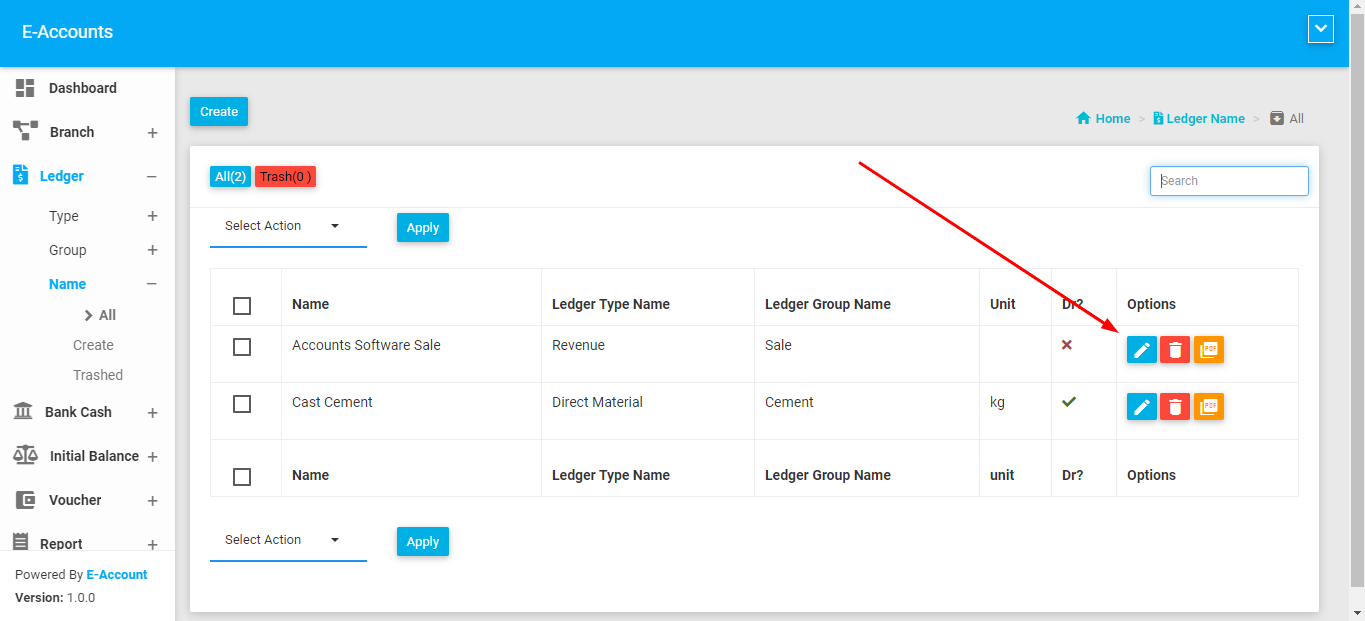
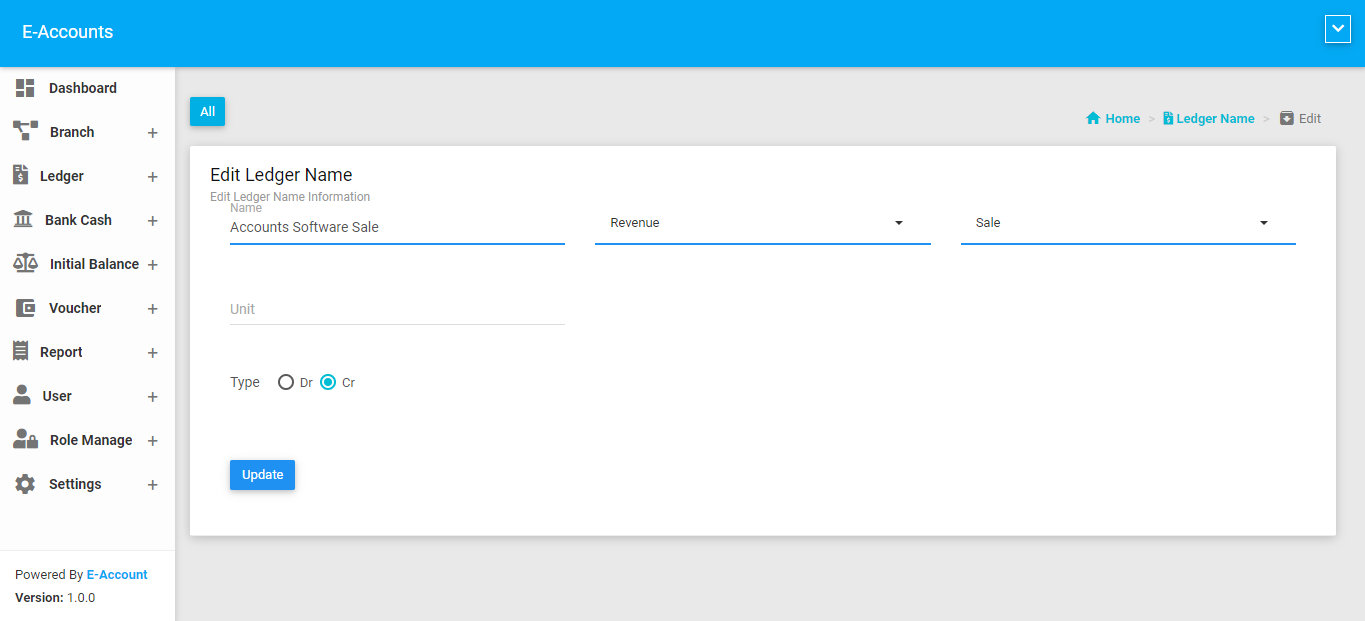
In this module you can see all your ledger. Which ledger type and group it belongs to and Is it debit or credit you can see.
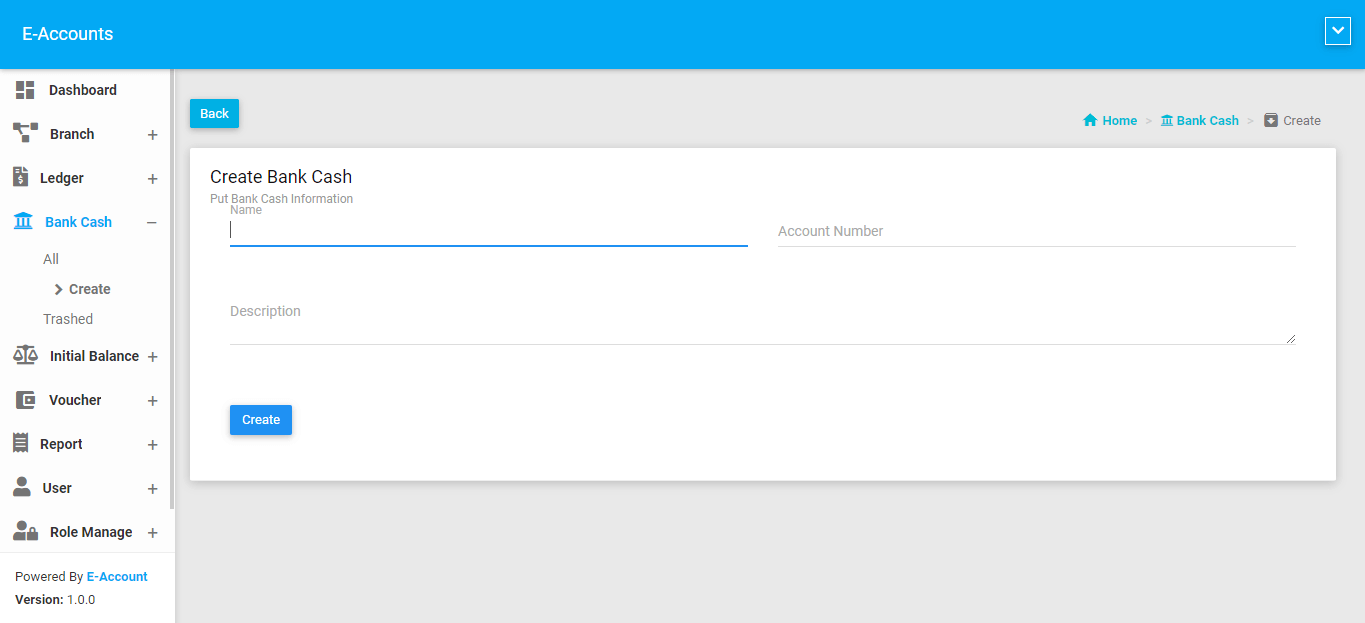
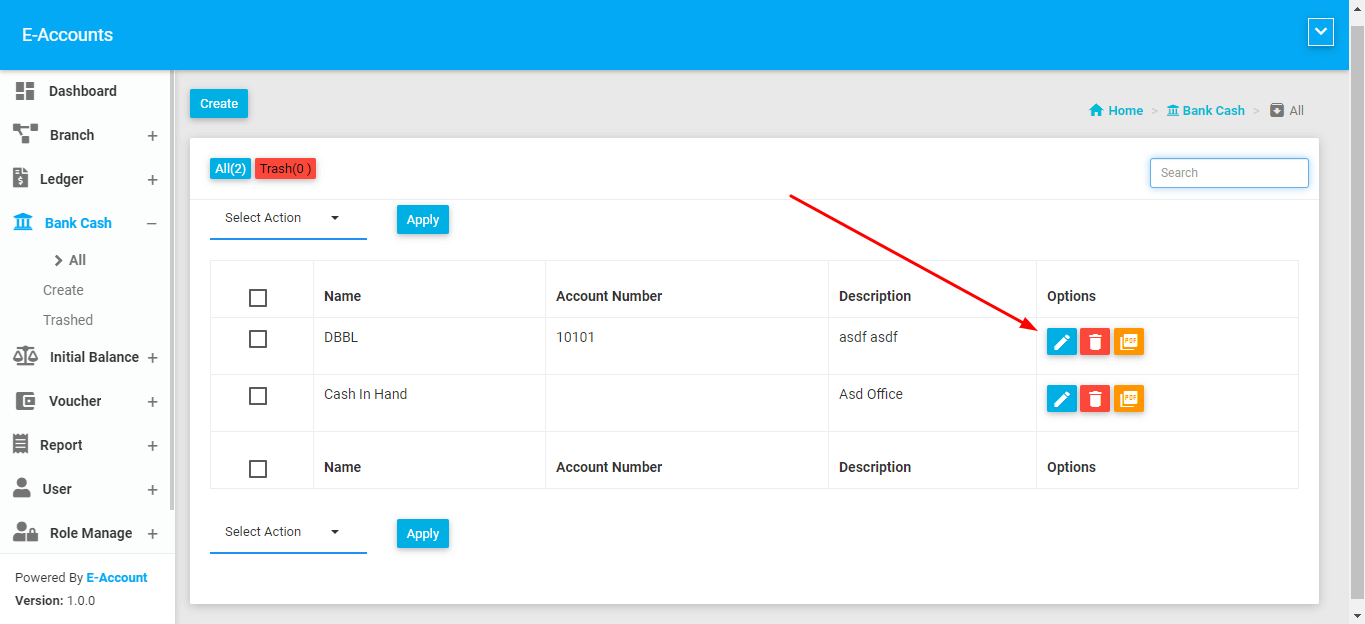
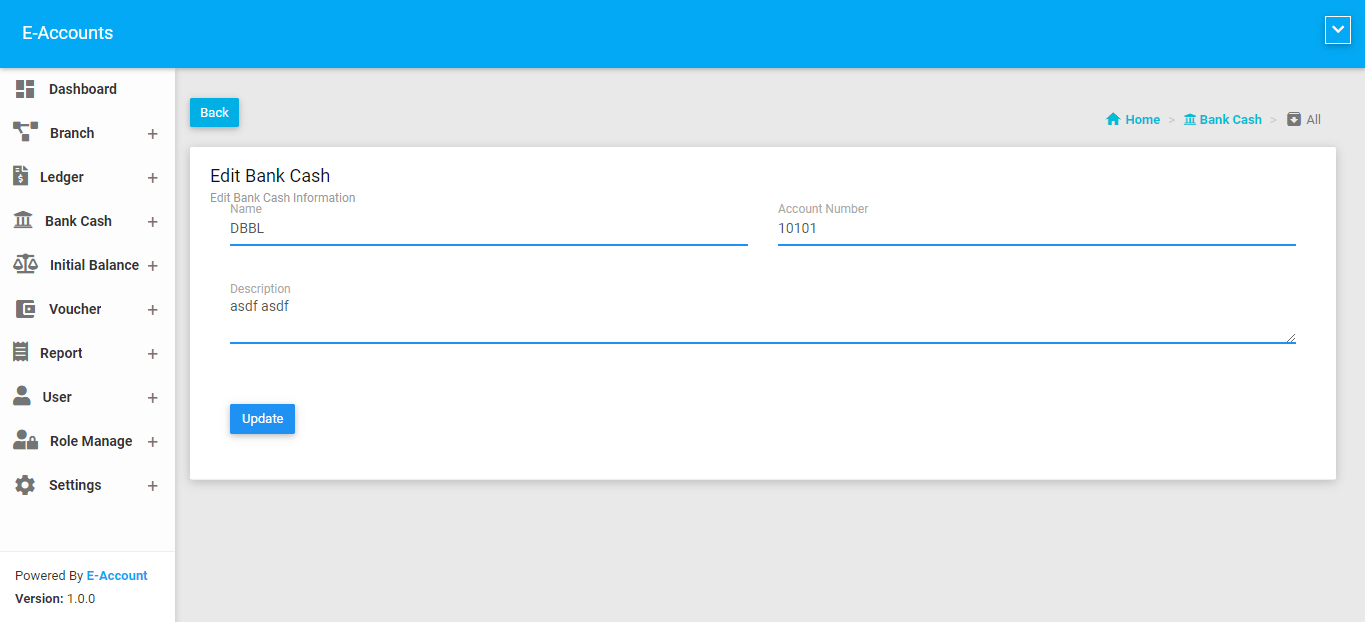
Bank Or Cash
Voucher
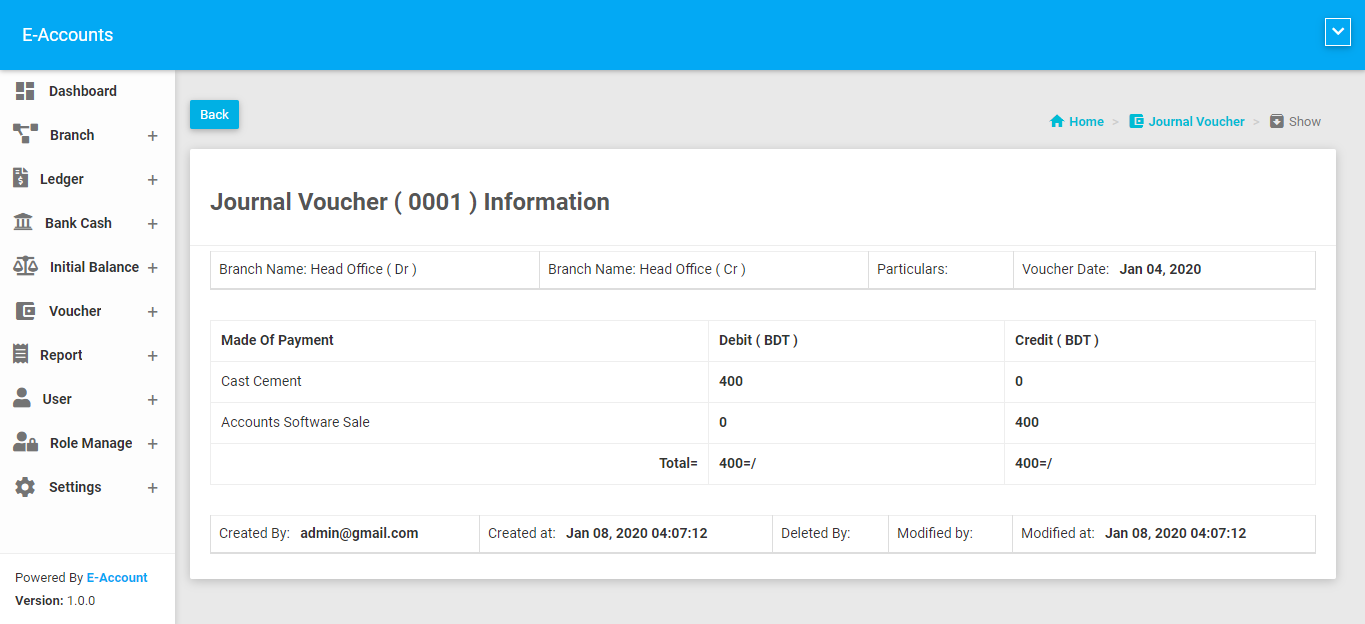
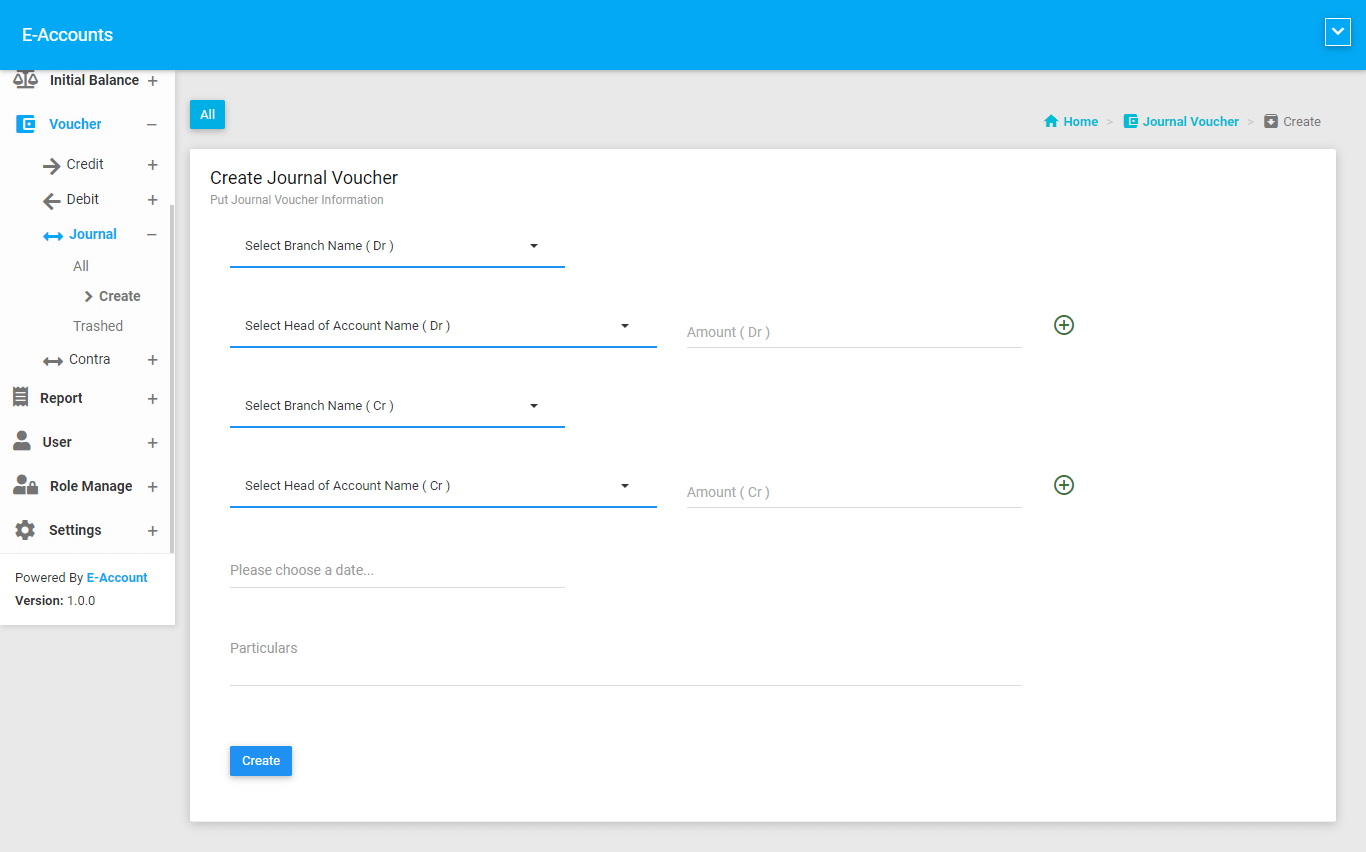
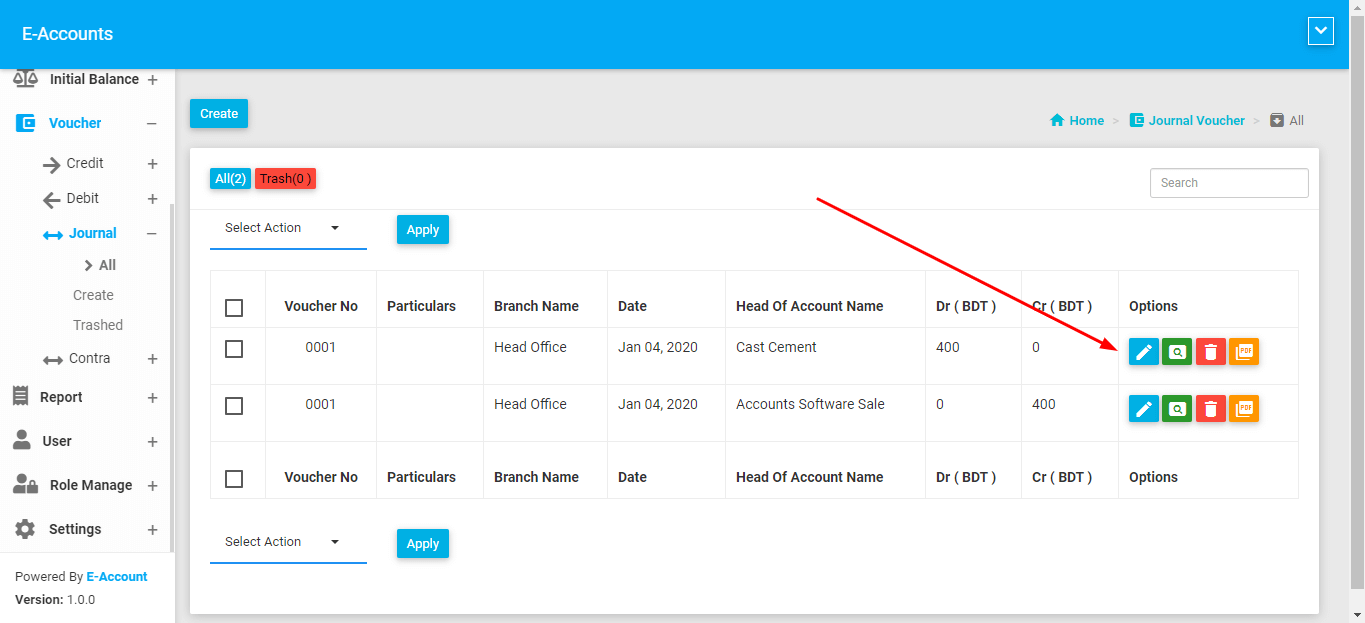
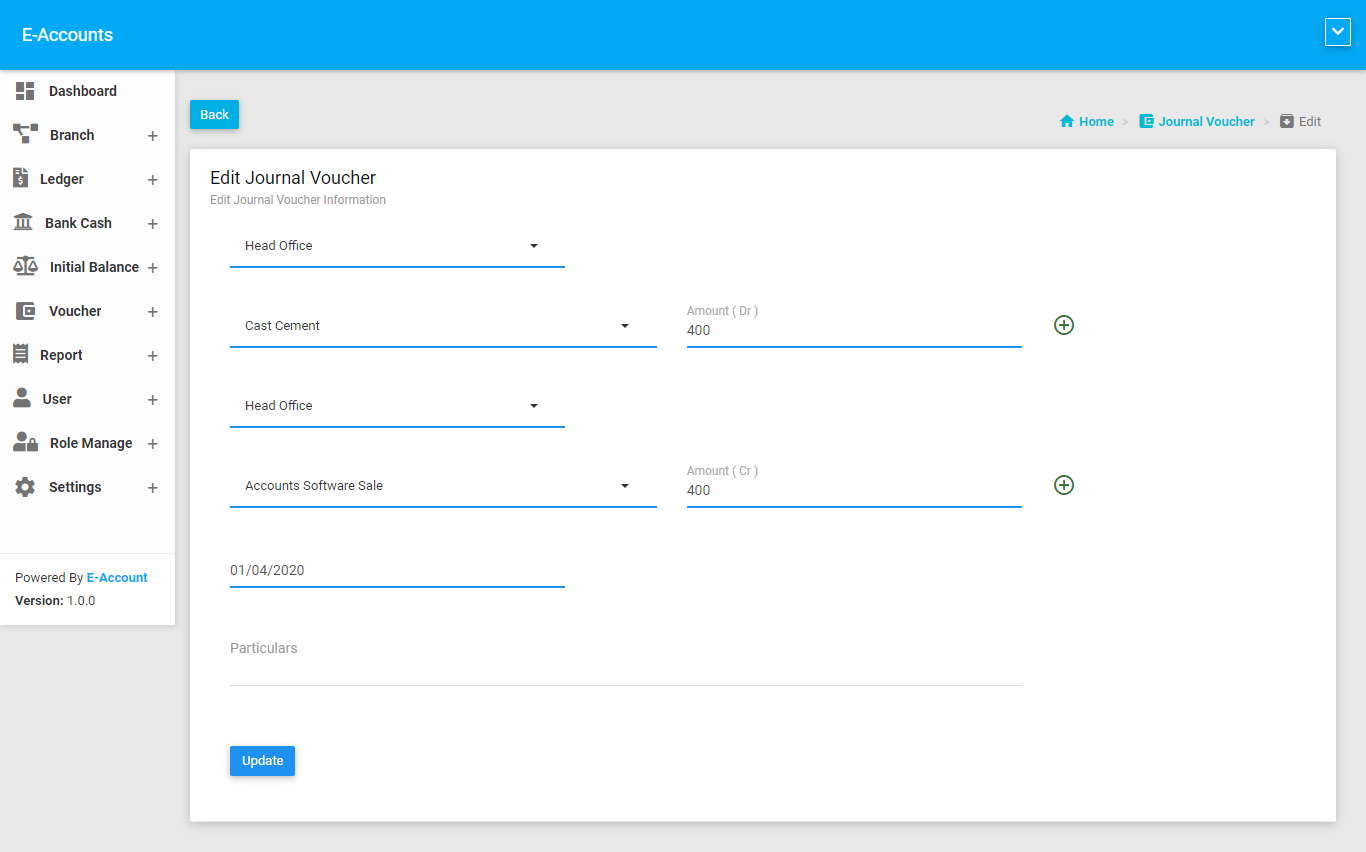
Accounting Vouchers basically analyzes a business transaction from the accounting standpoint and is used for recording purposes.
There are four types of Accounting Voucher that you can easily make transaction.
This are given below:
- Credit Voucher
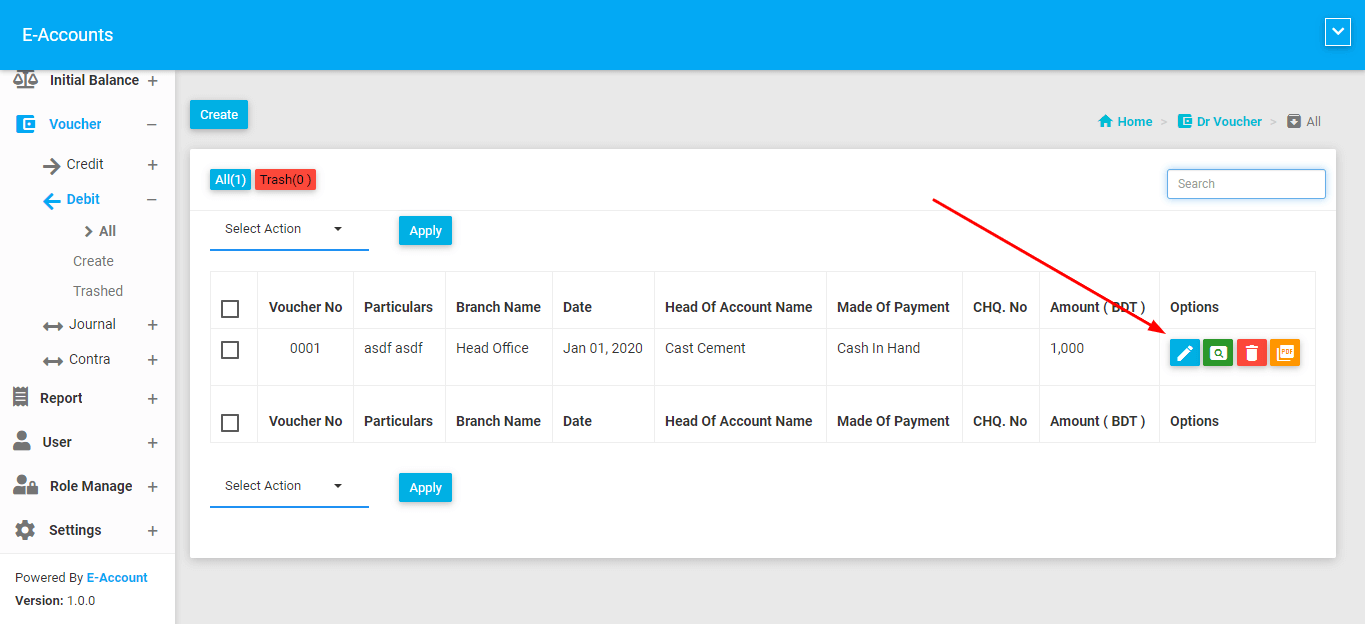
- Debit Voucher
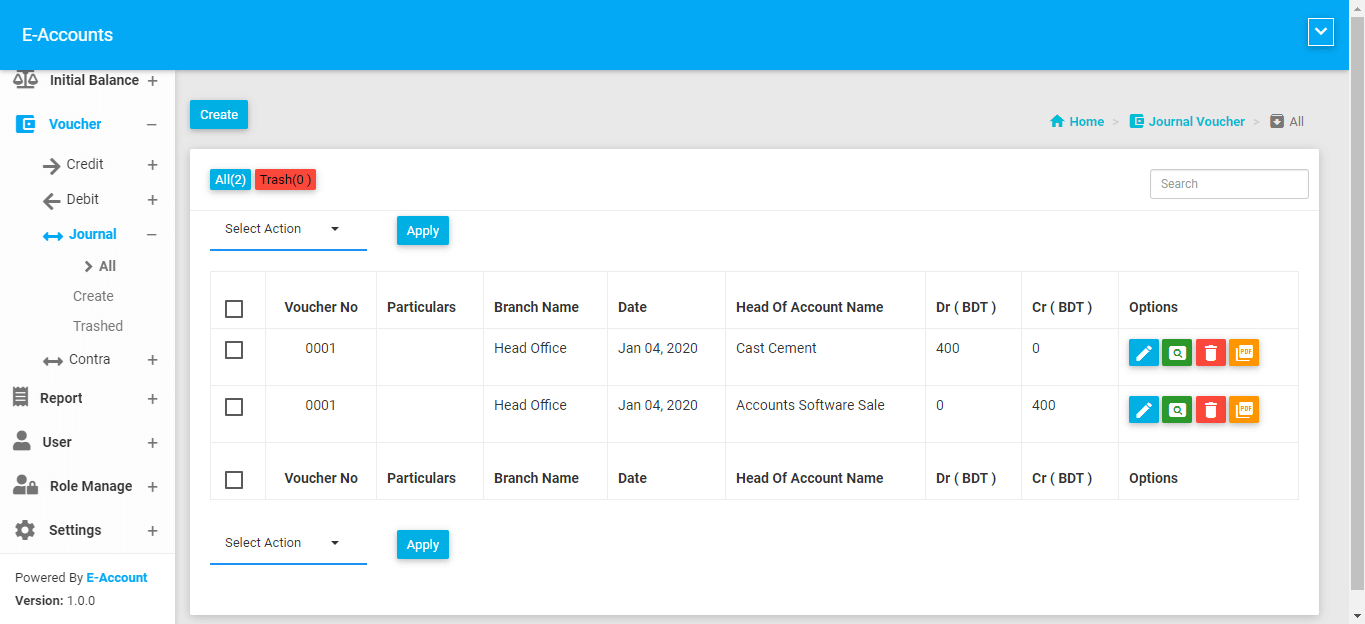
- Journal Voucher
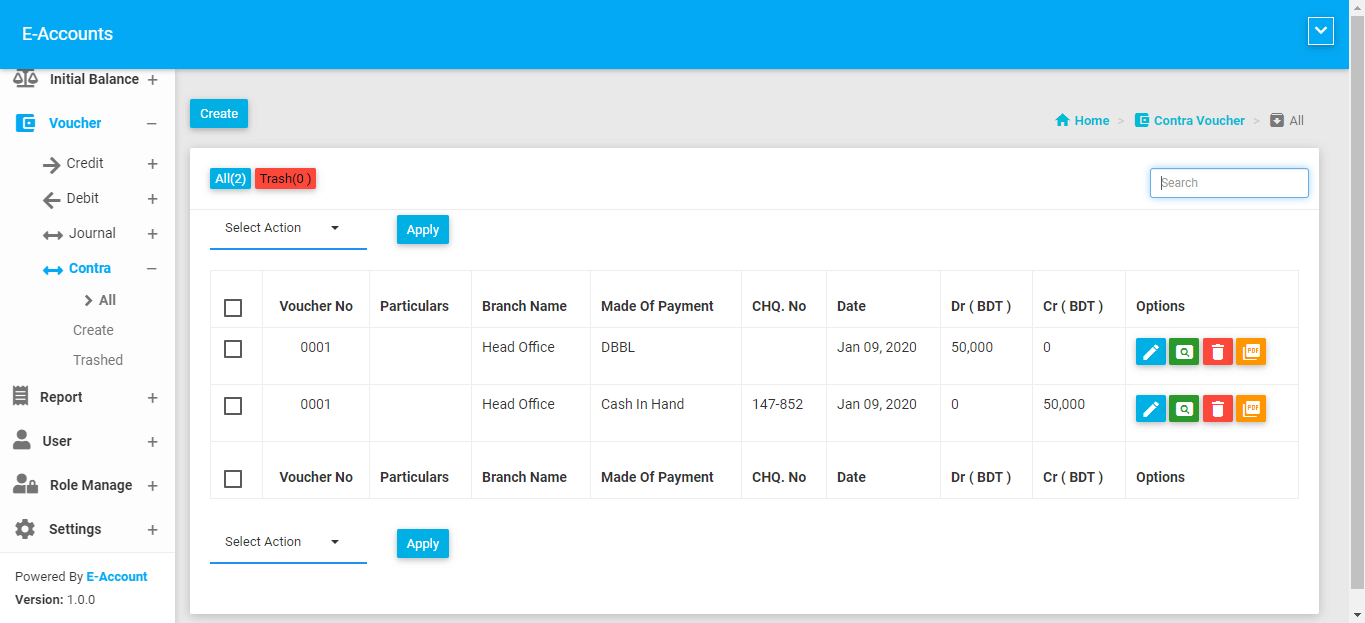
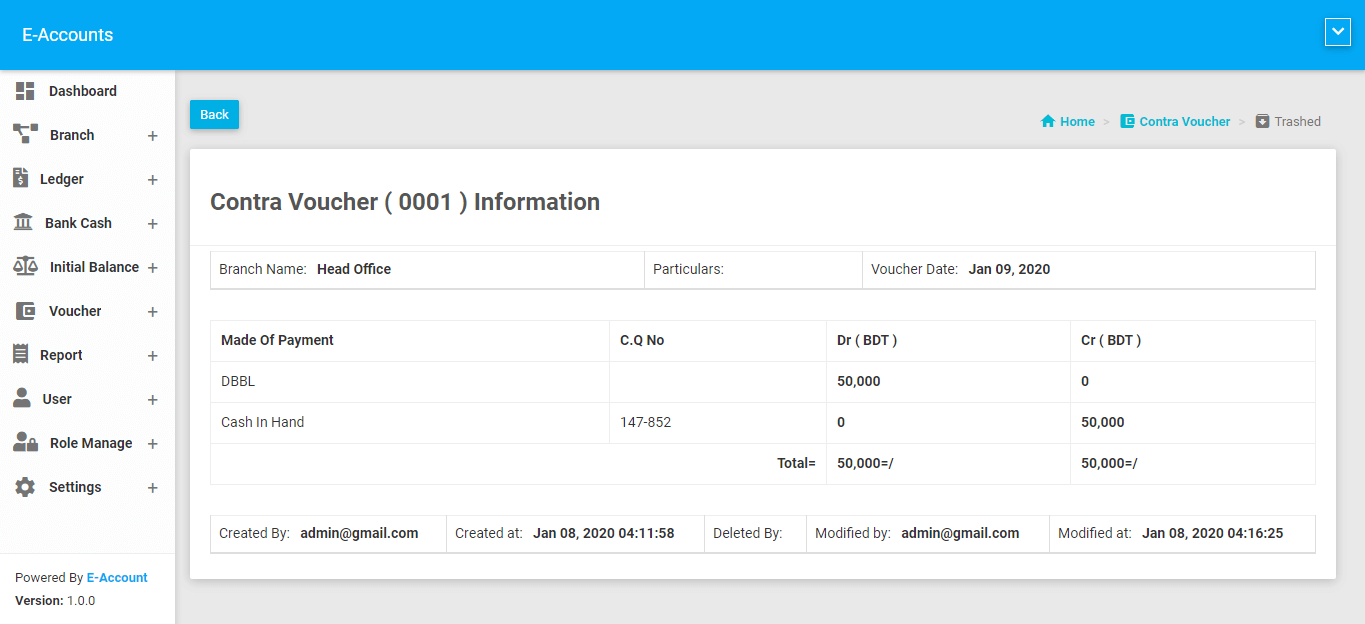
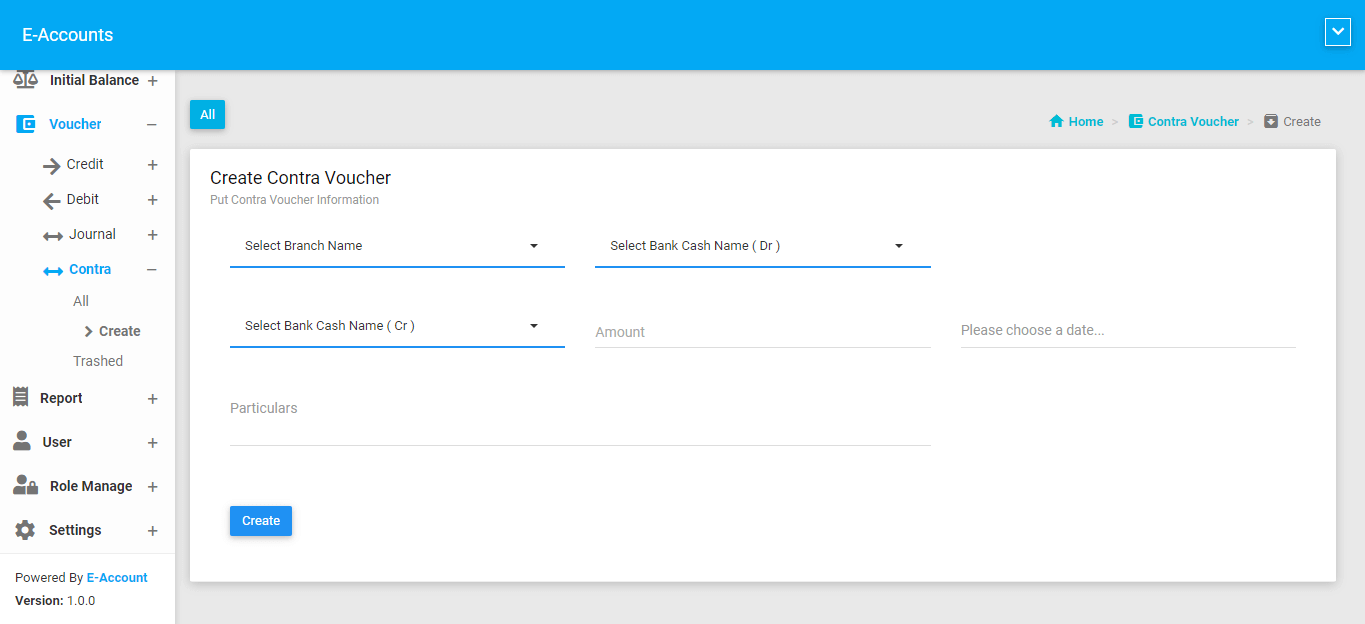
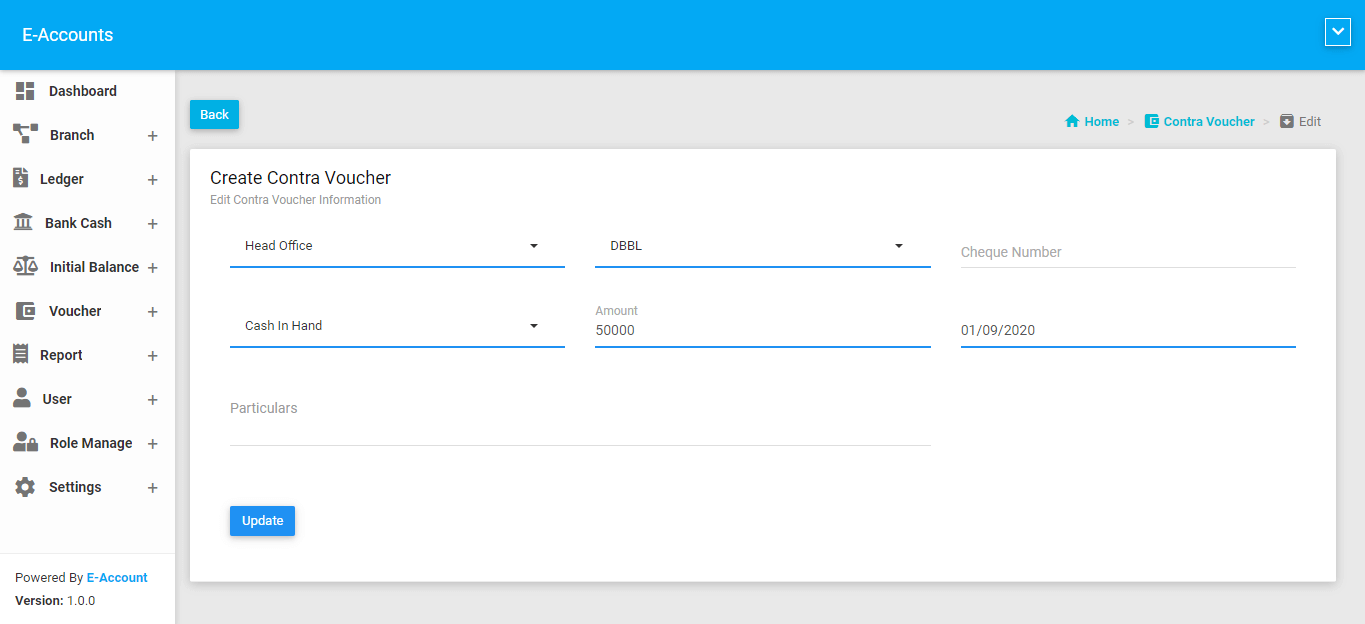
- Contra Voucher
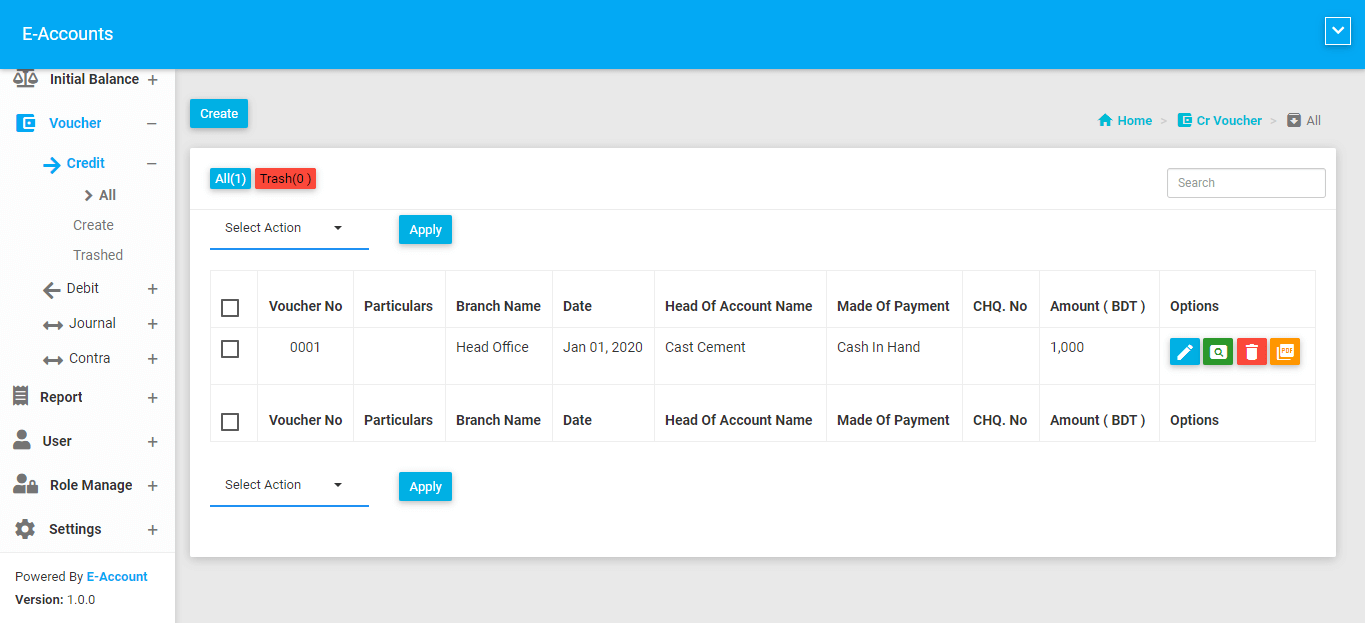
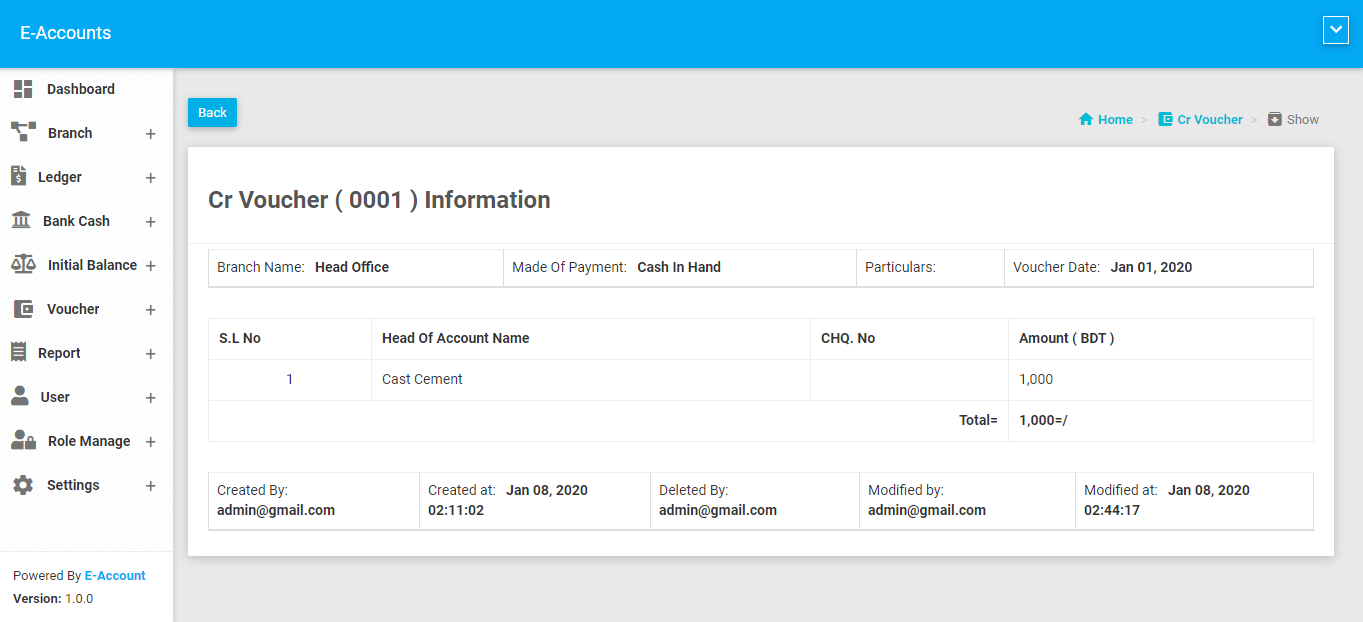
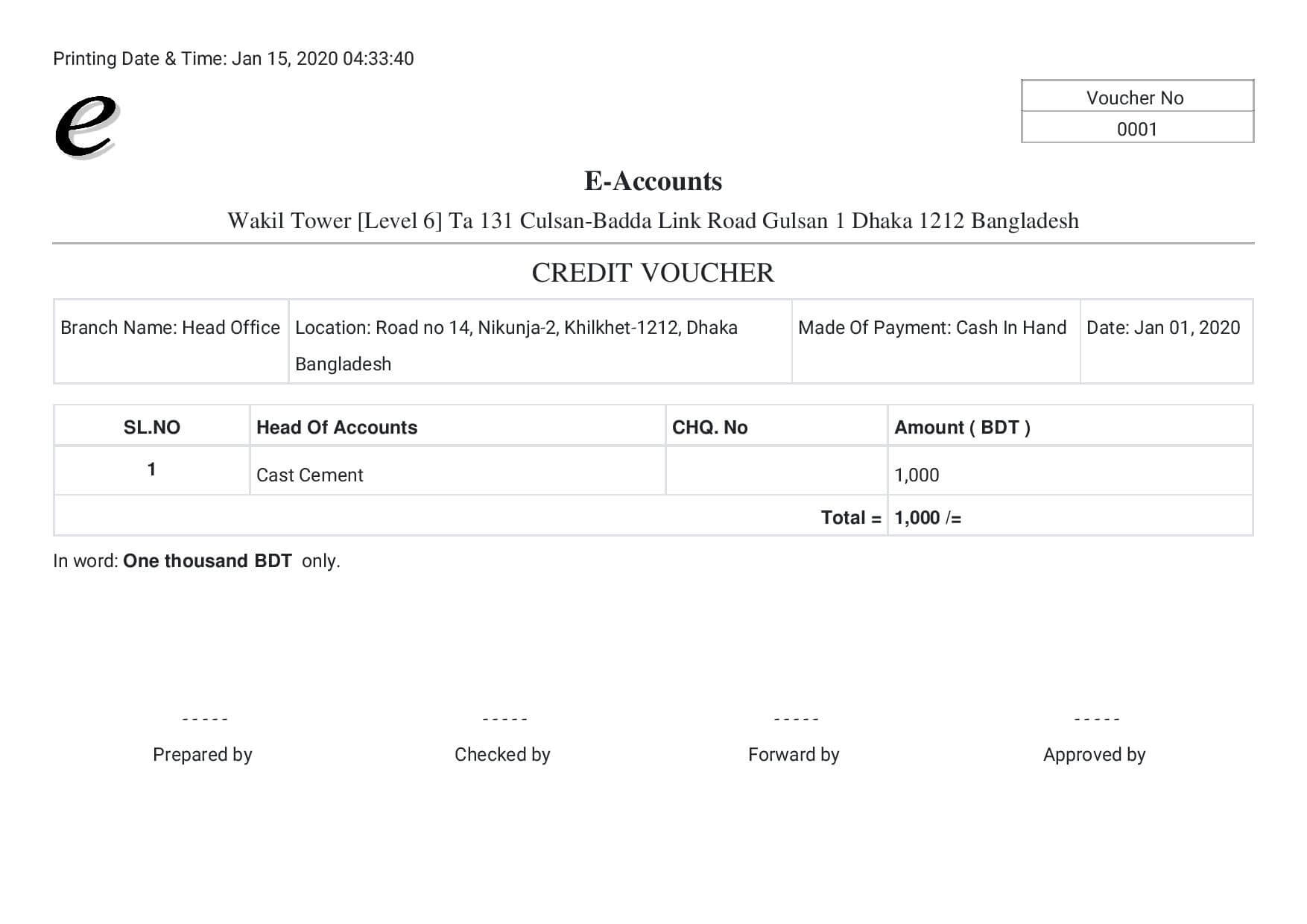
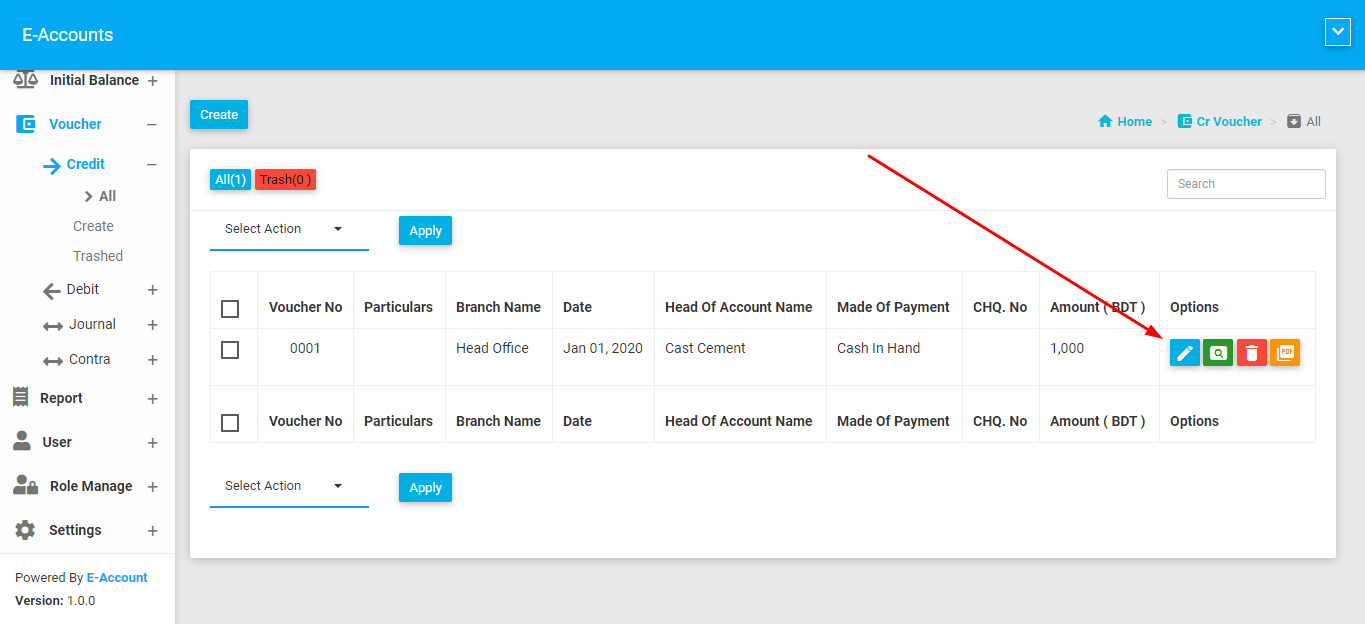
Credit Voucher
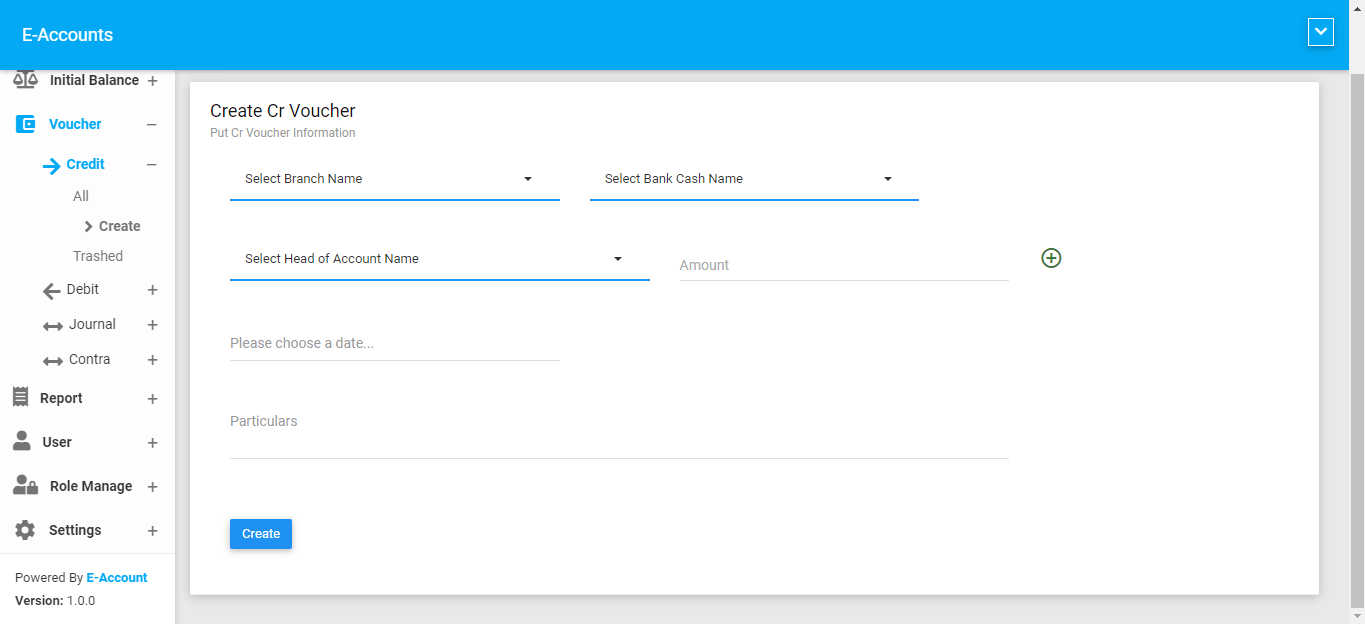
Create
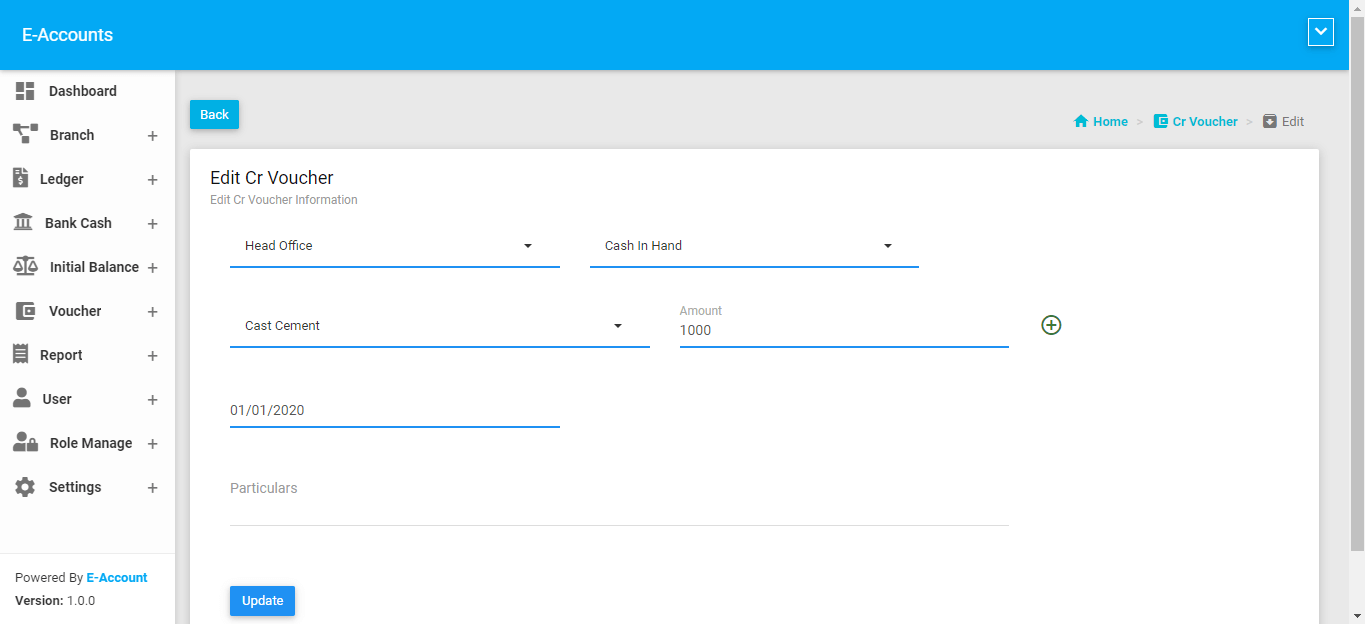
Project name, Bank Or Cash Name, Head of Account ( Ledger Name ), Amount, Voucher Date Is Required.
Debit Voucher
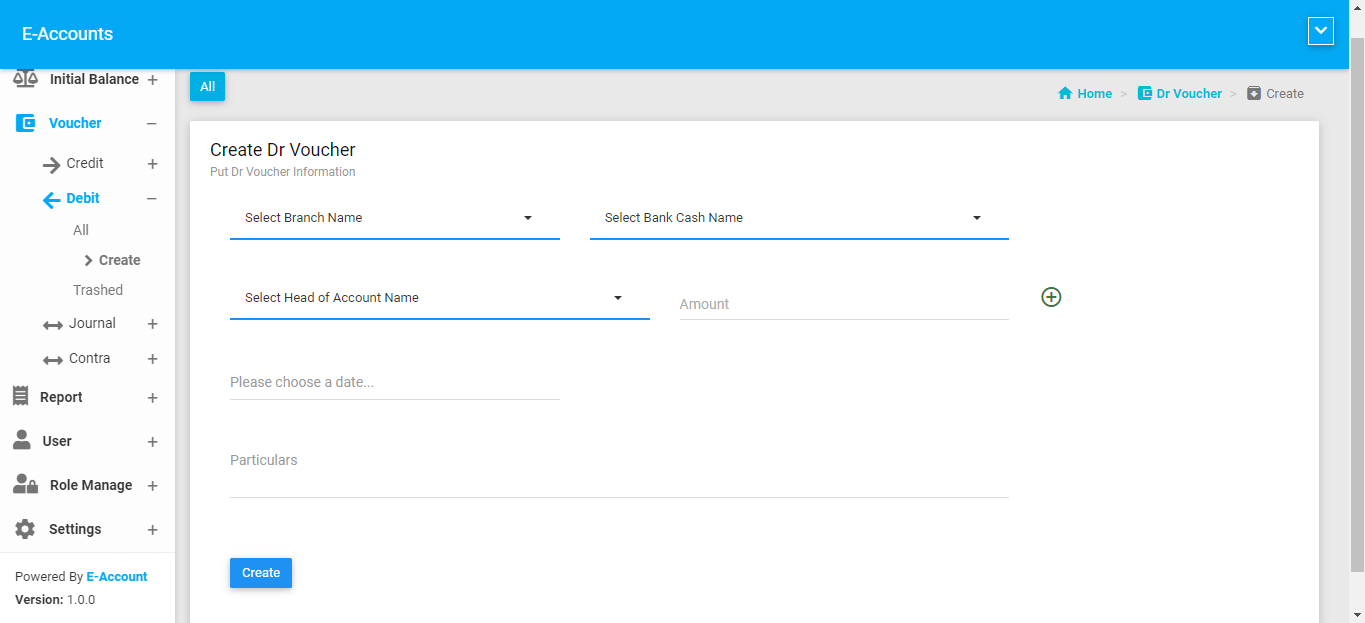
Create
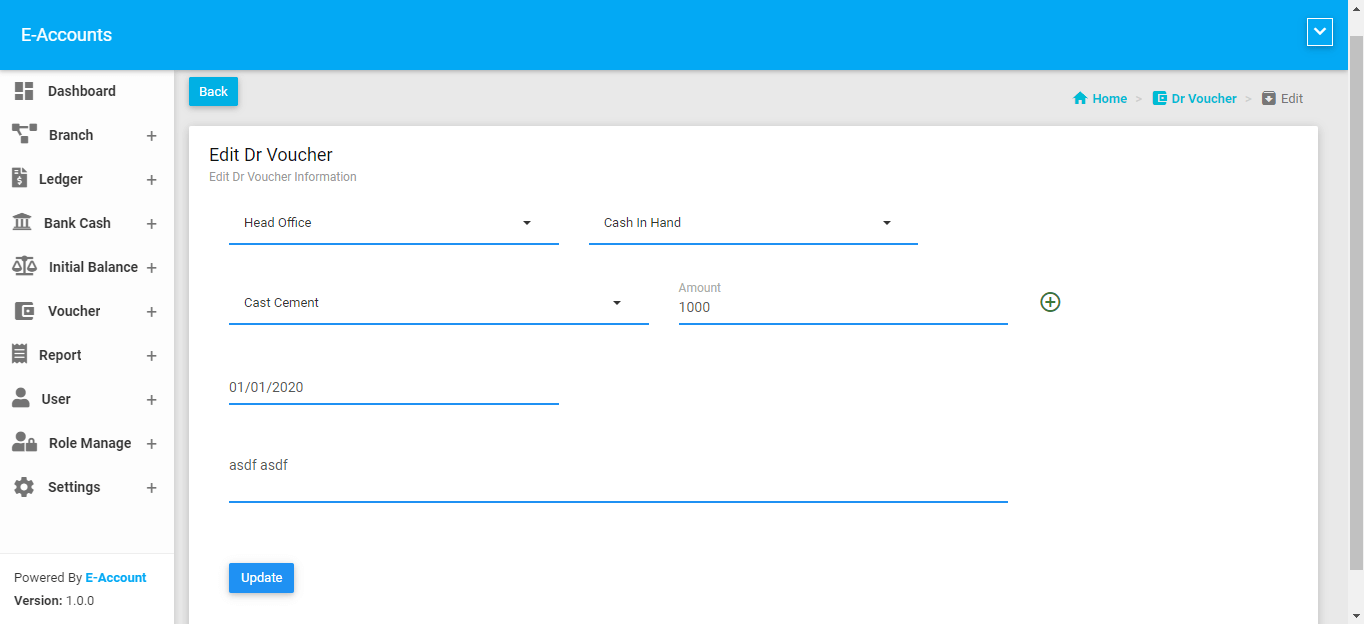
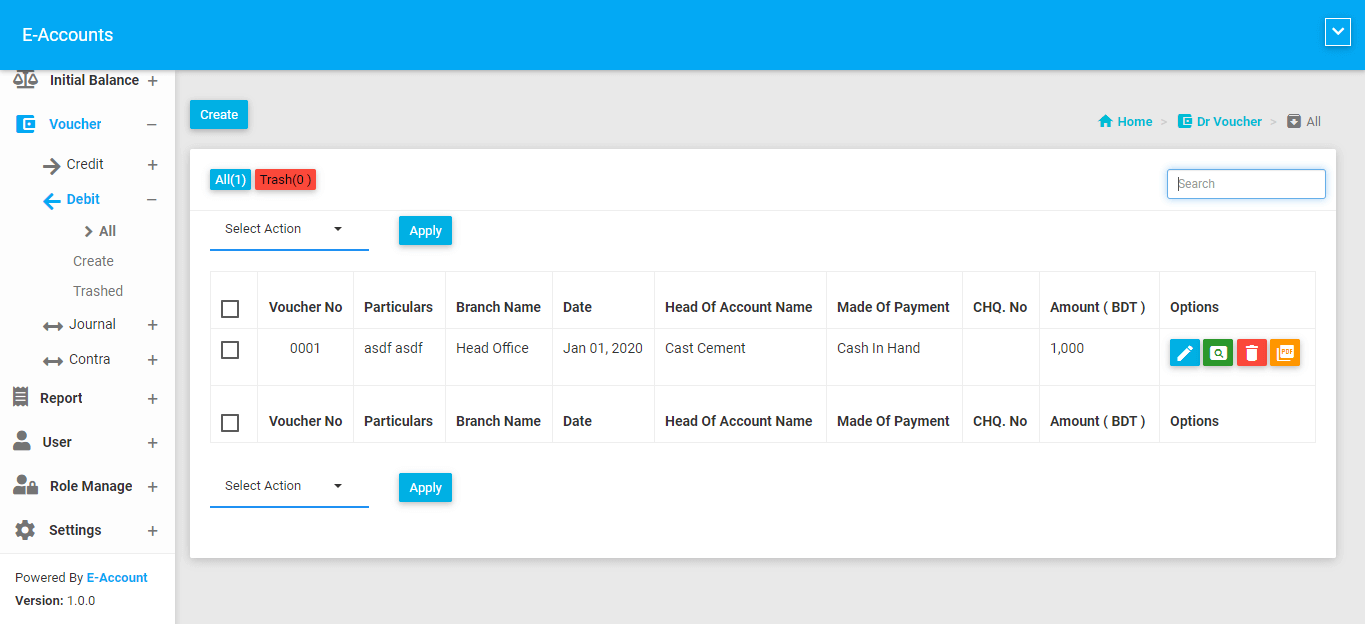
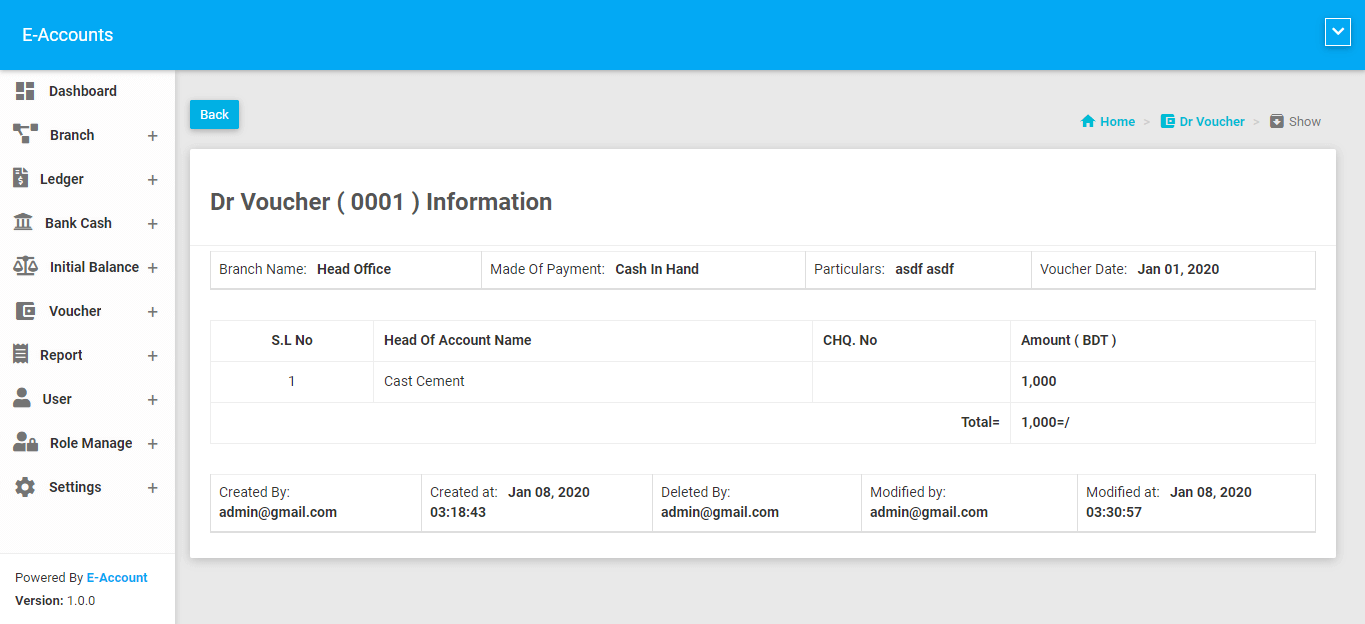
Project name, Bank Or Cash Name, Head of Account ( Ledger Name ), Amount, Voucher Date Is Required. You can perform multiple amount on this voucher.